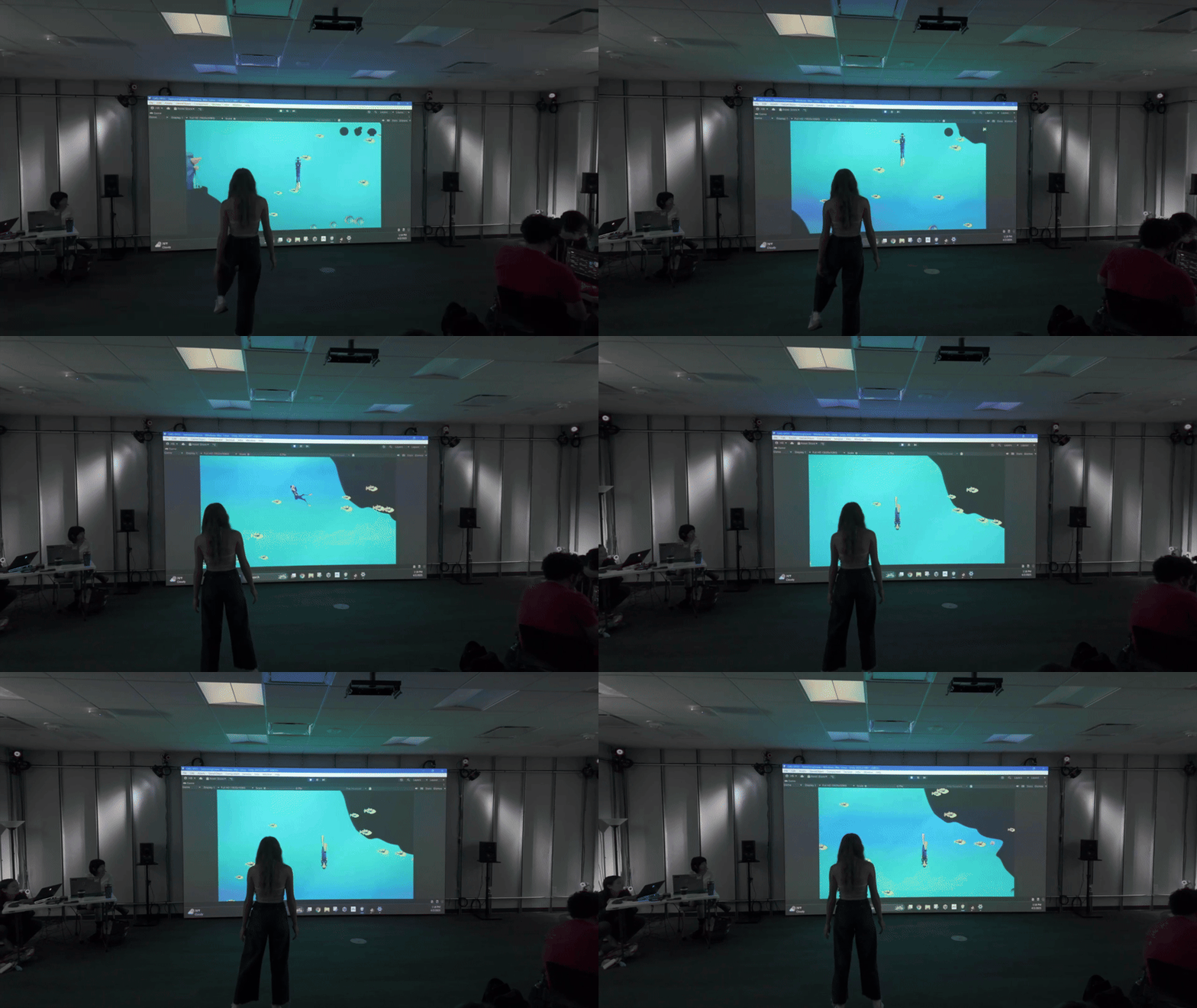
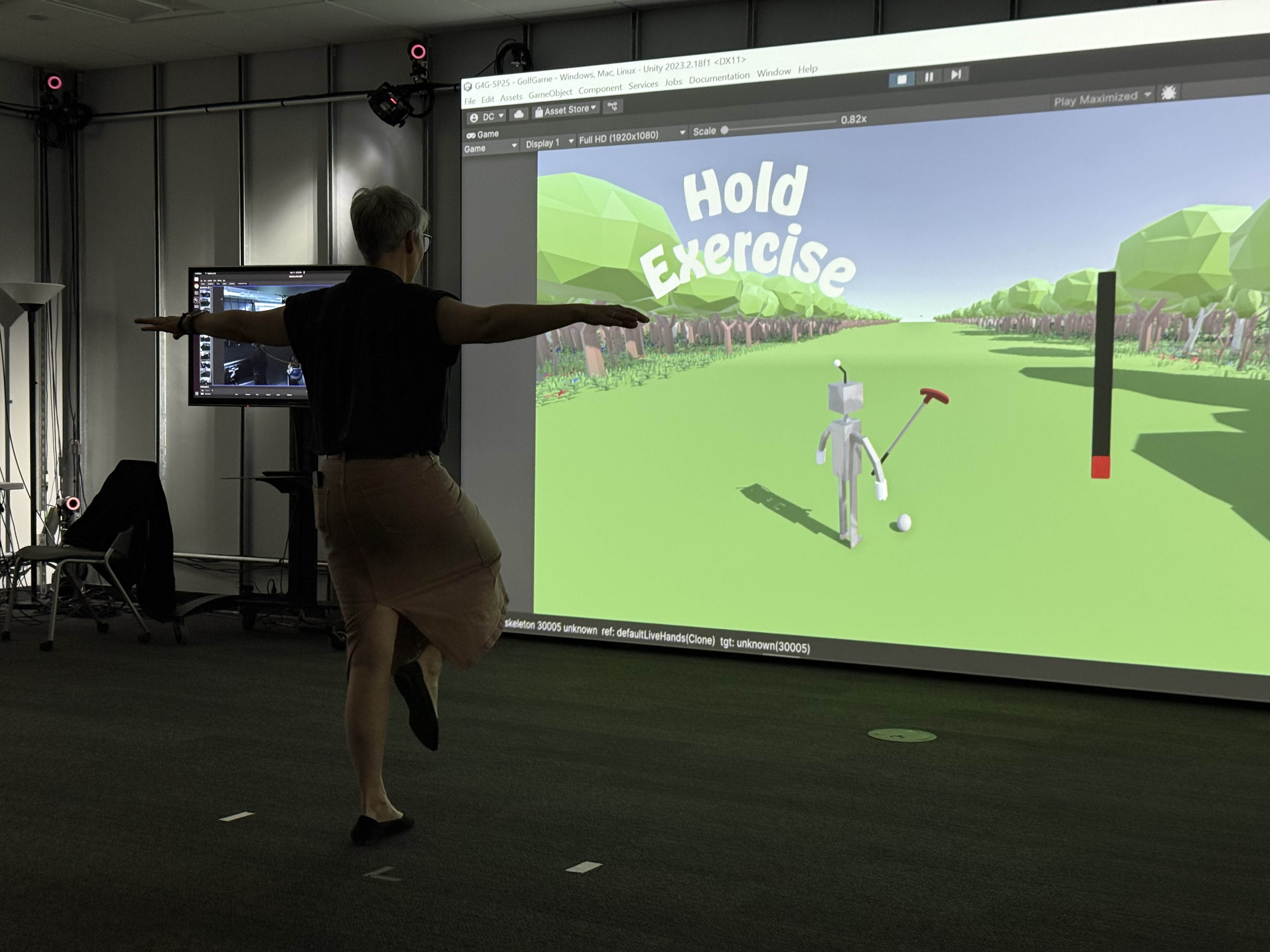
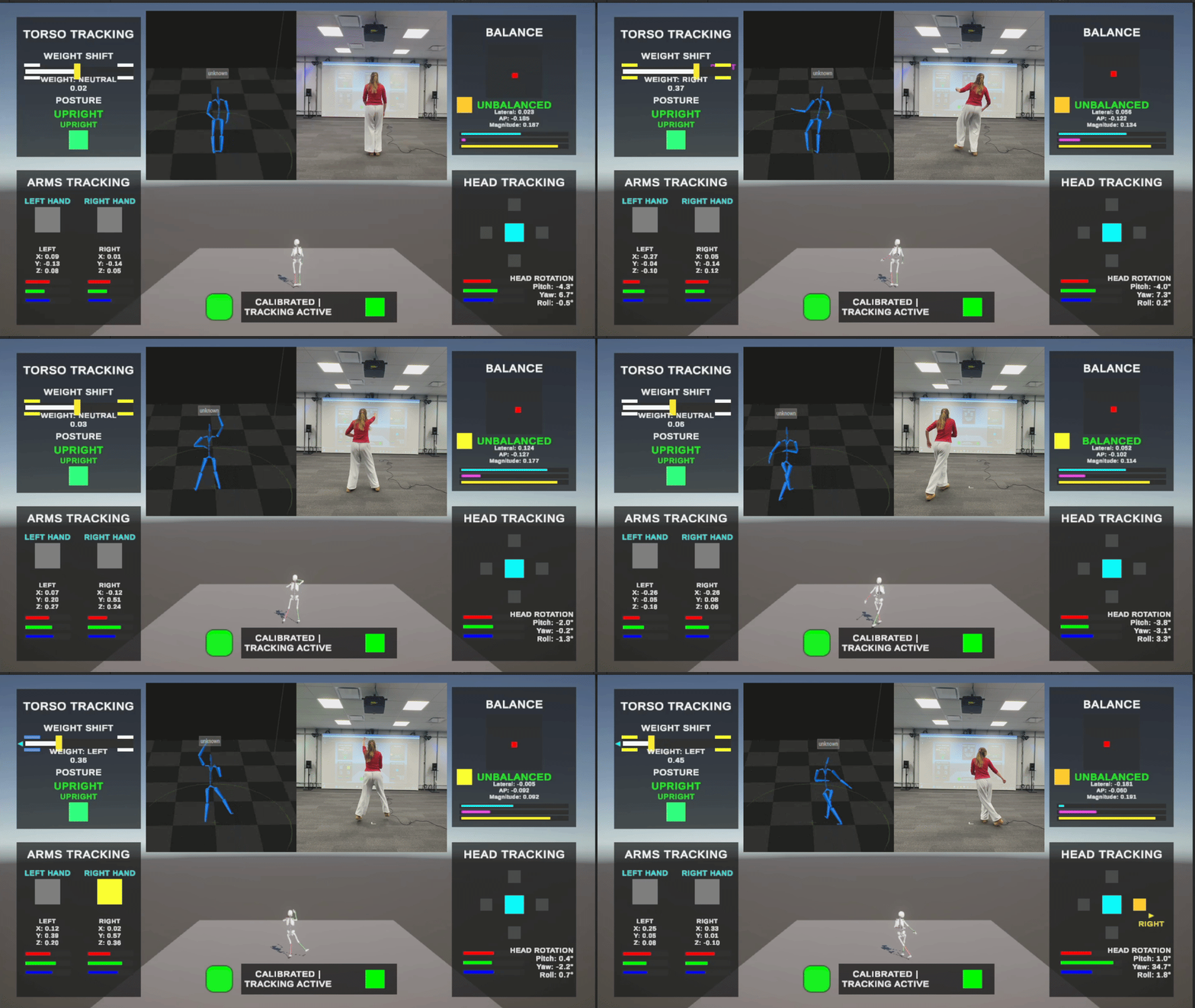
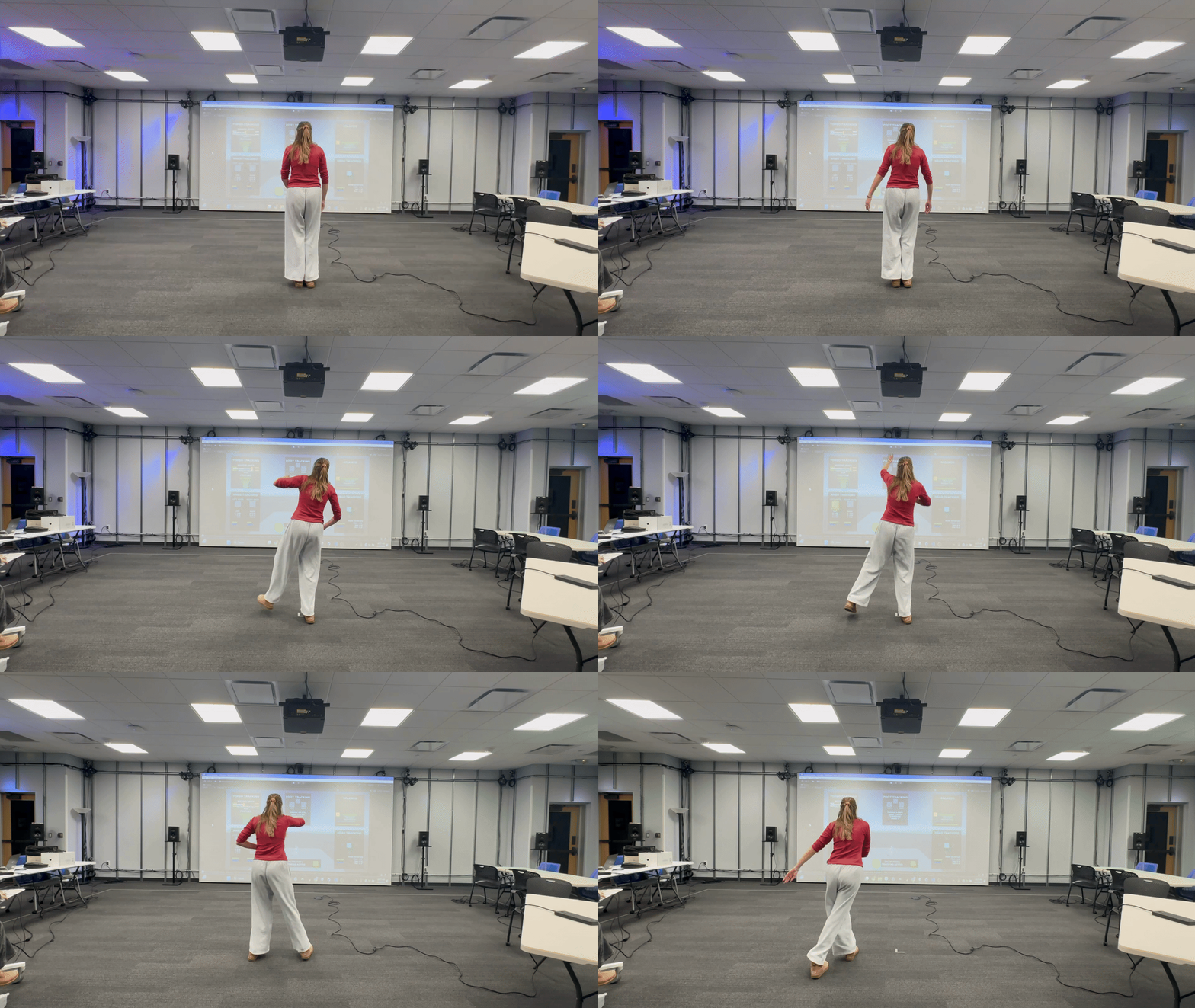
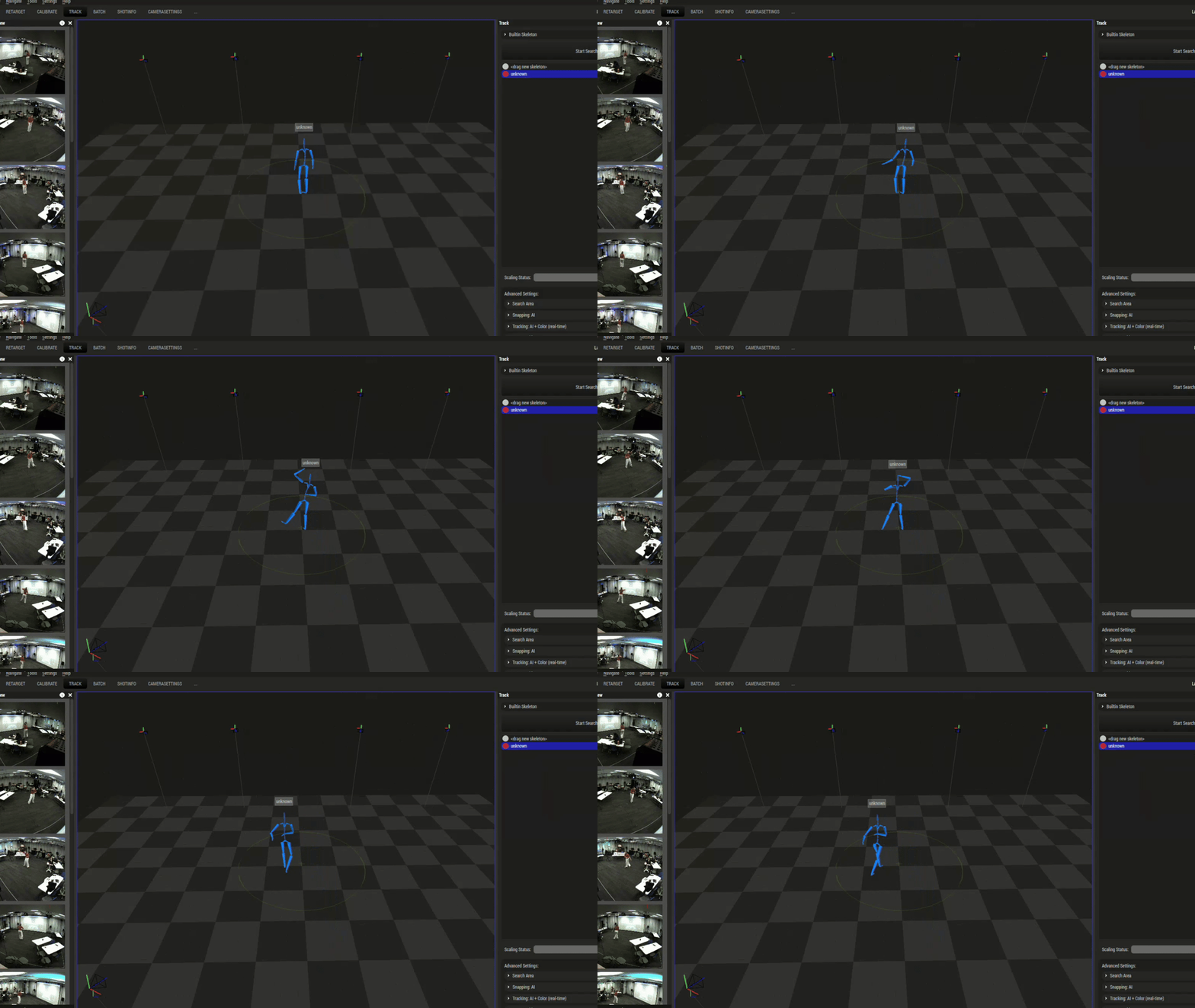
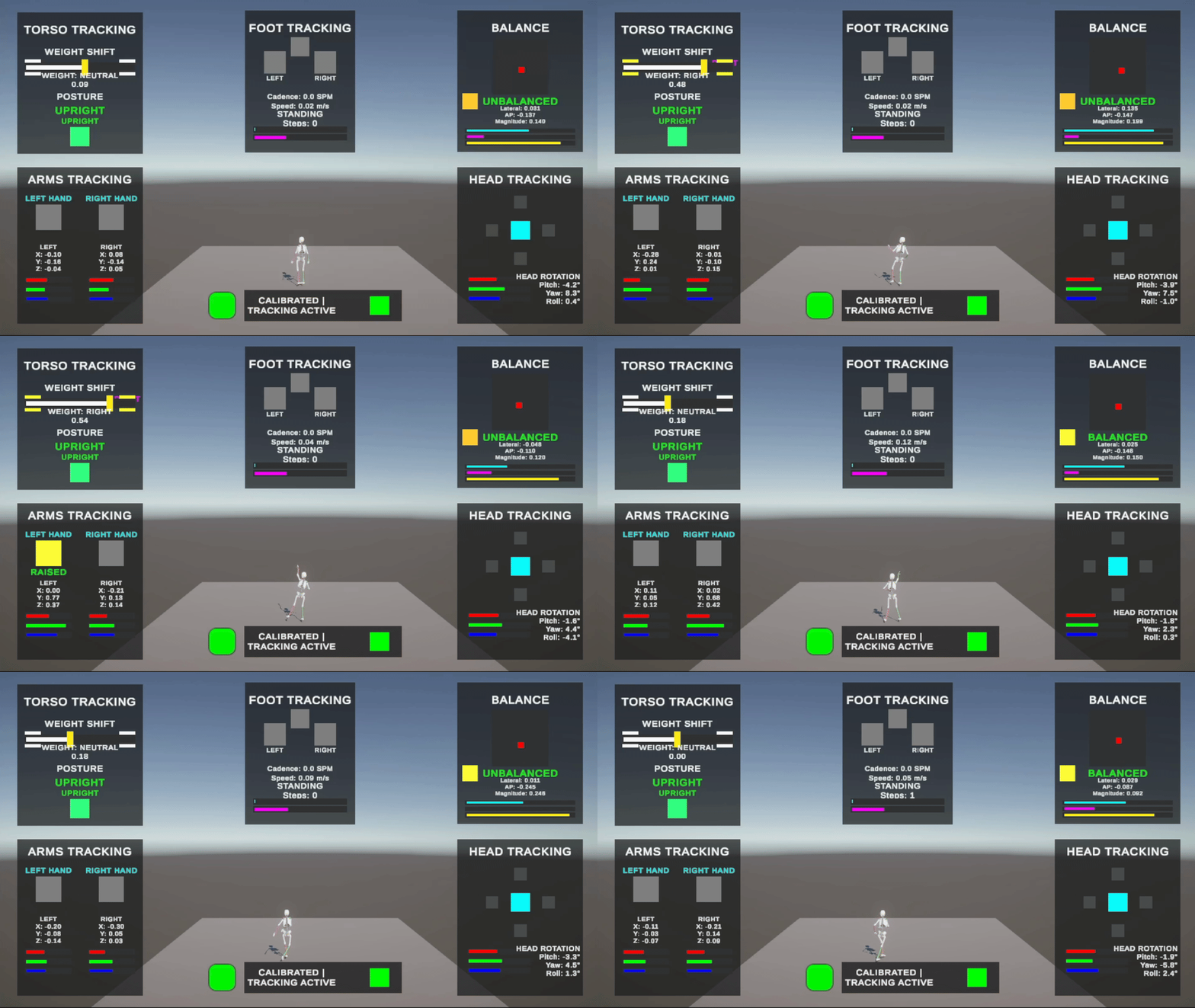
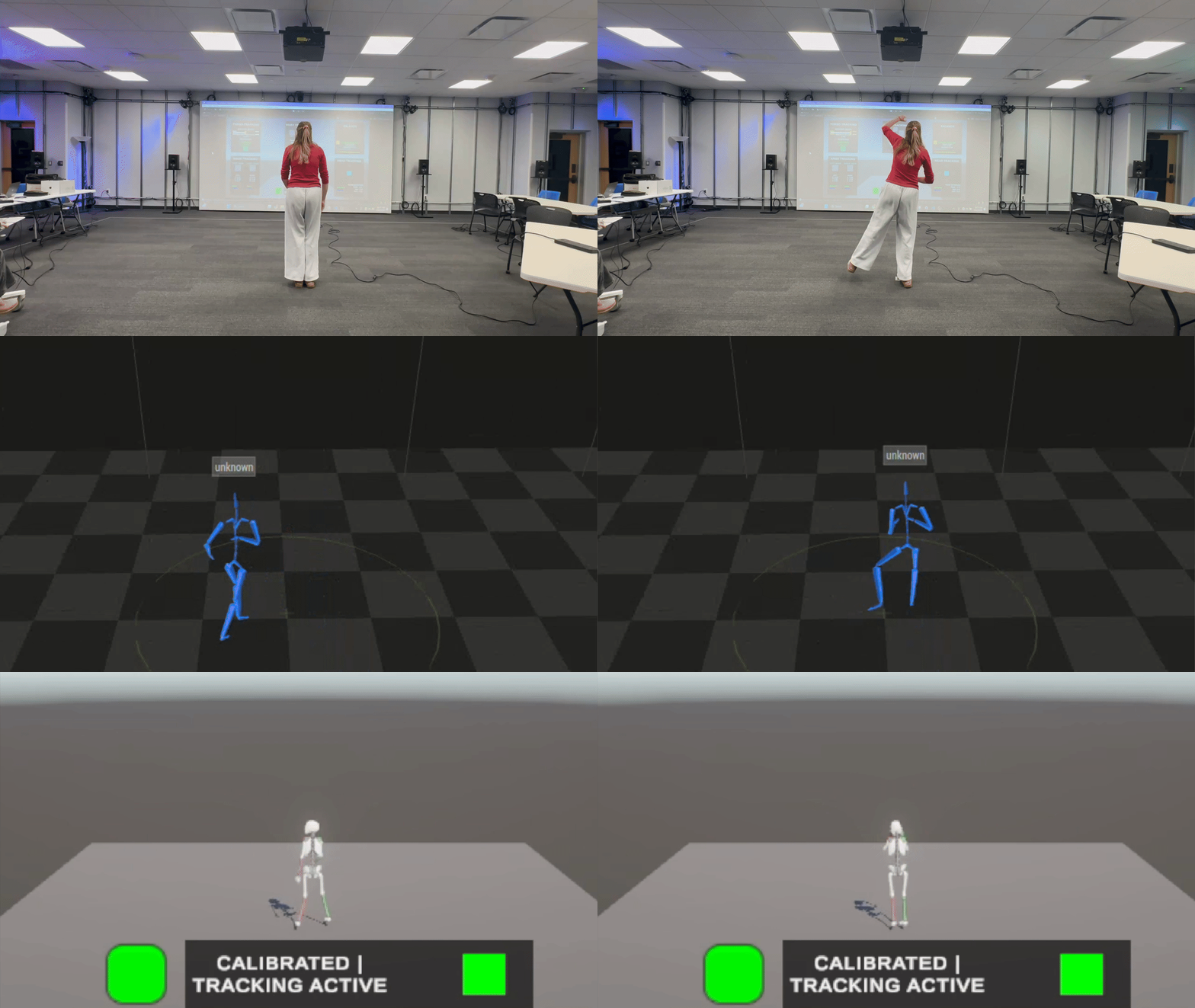
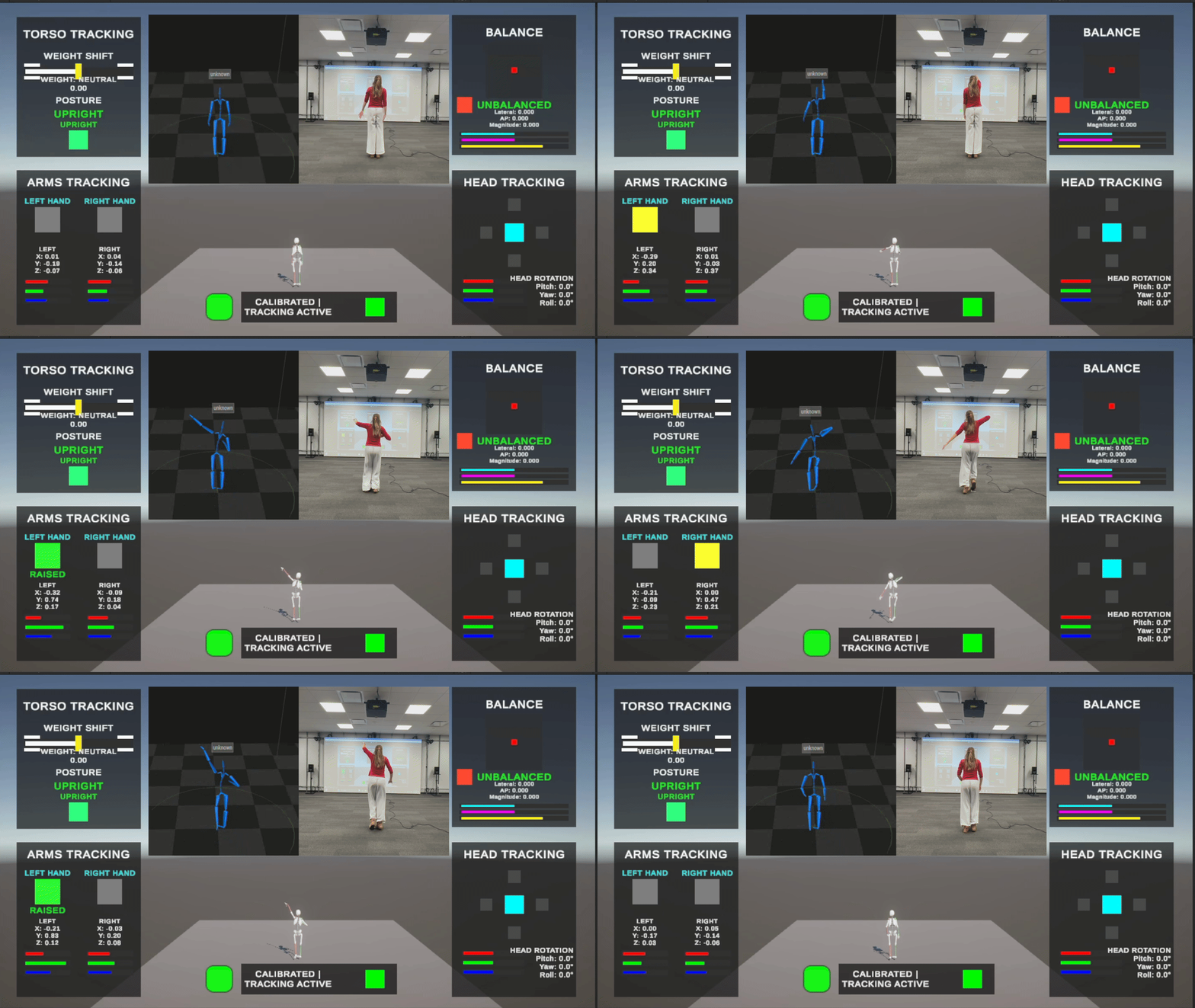
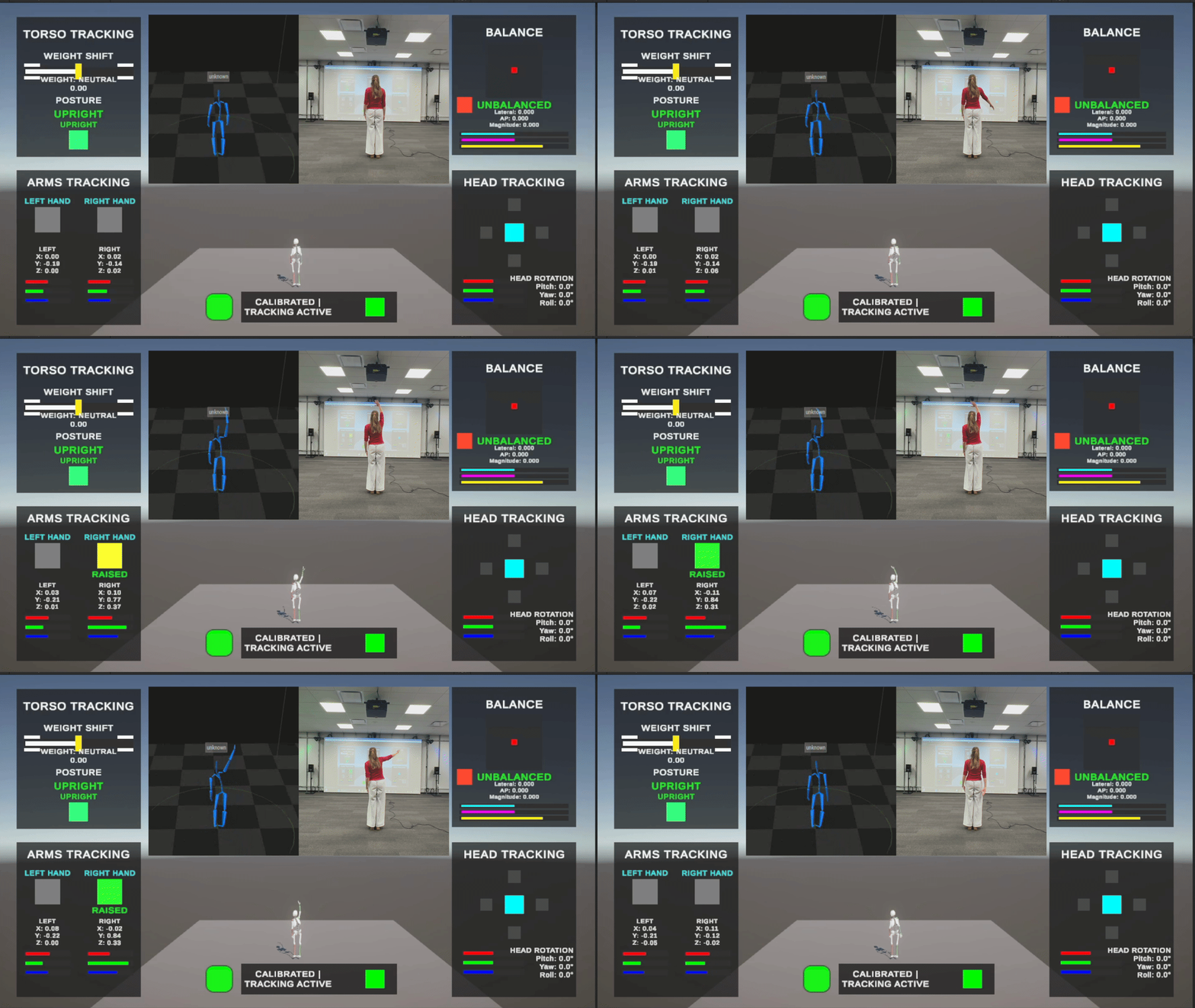
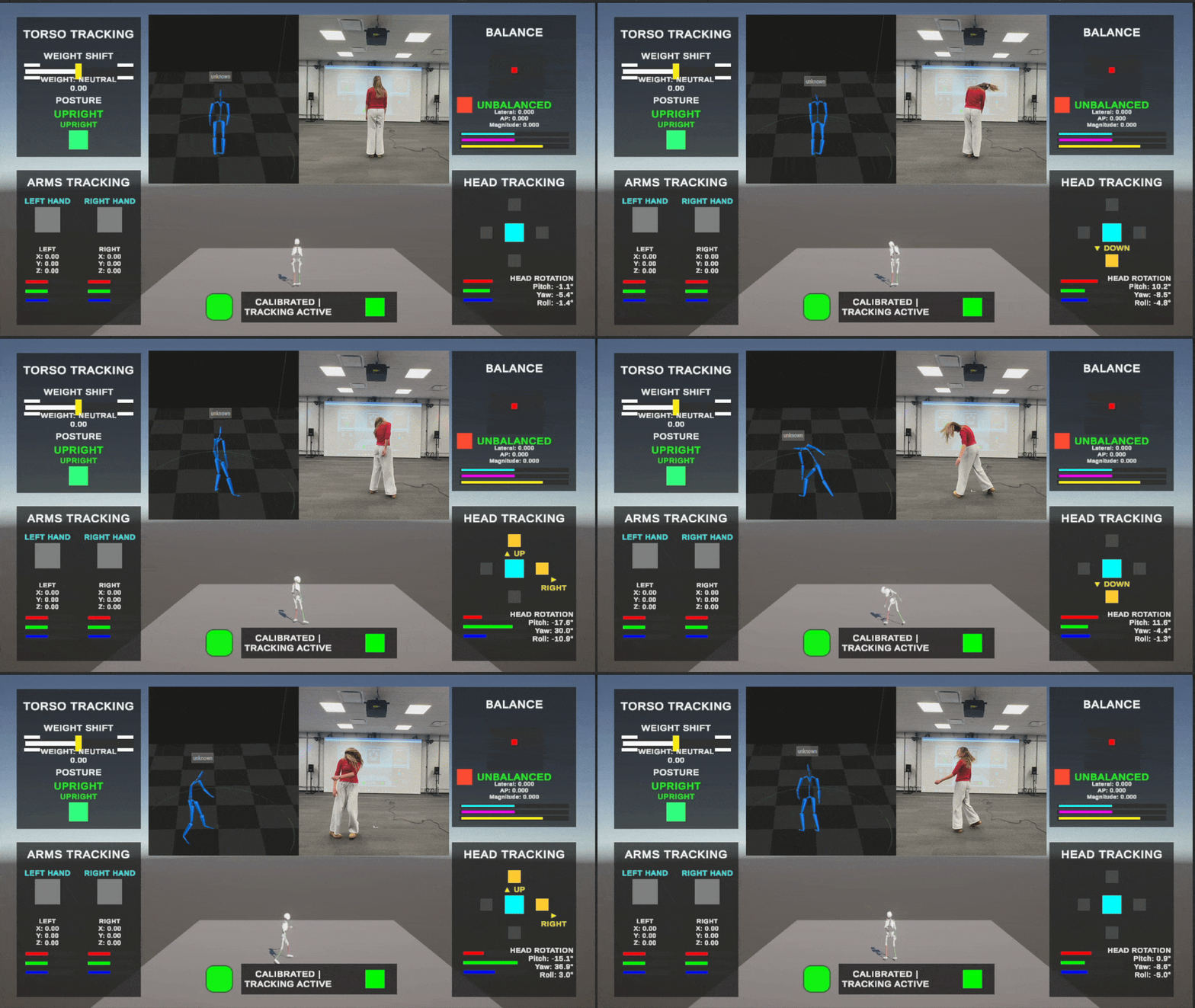
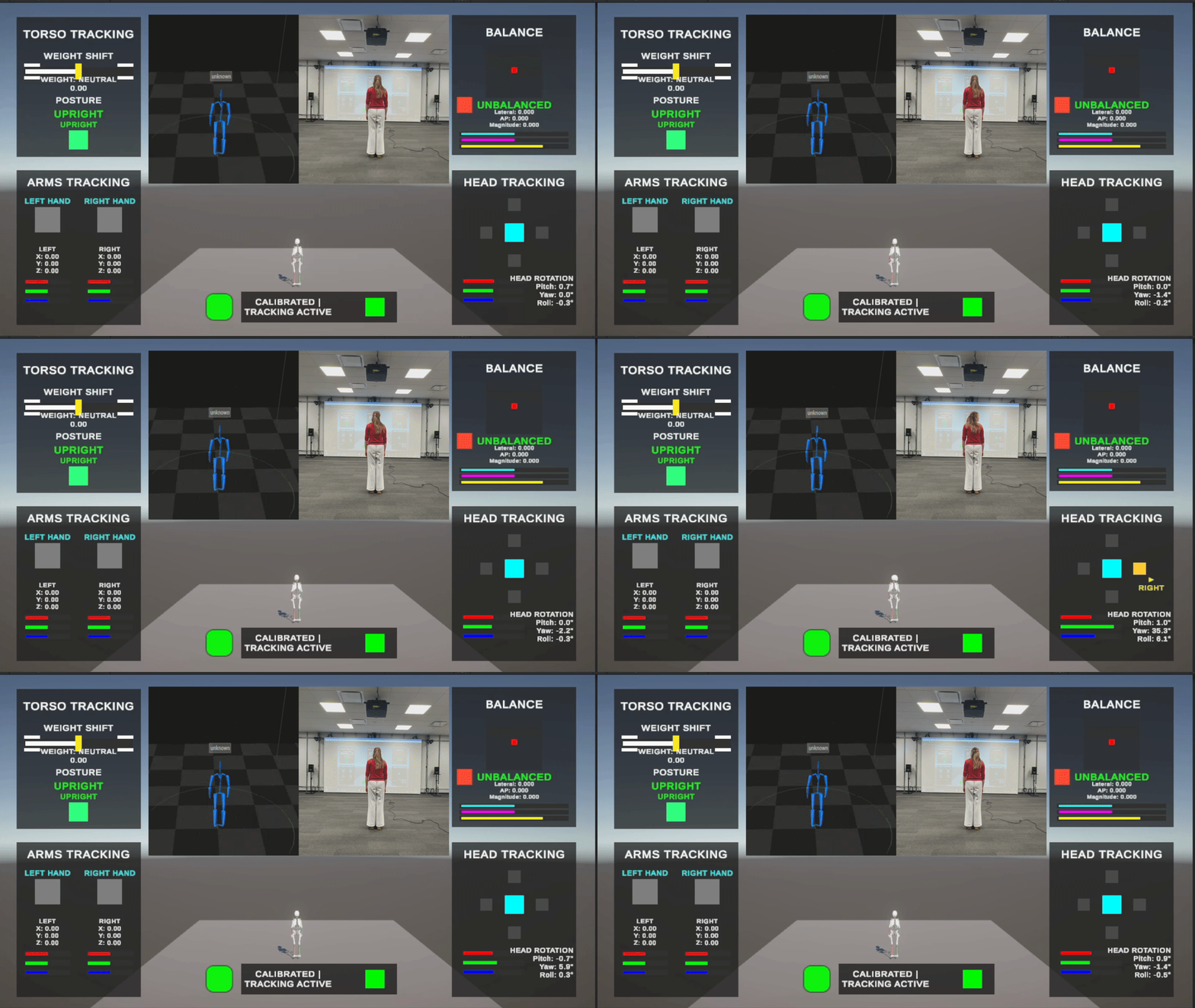
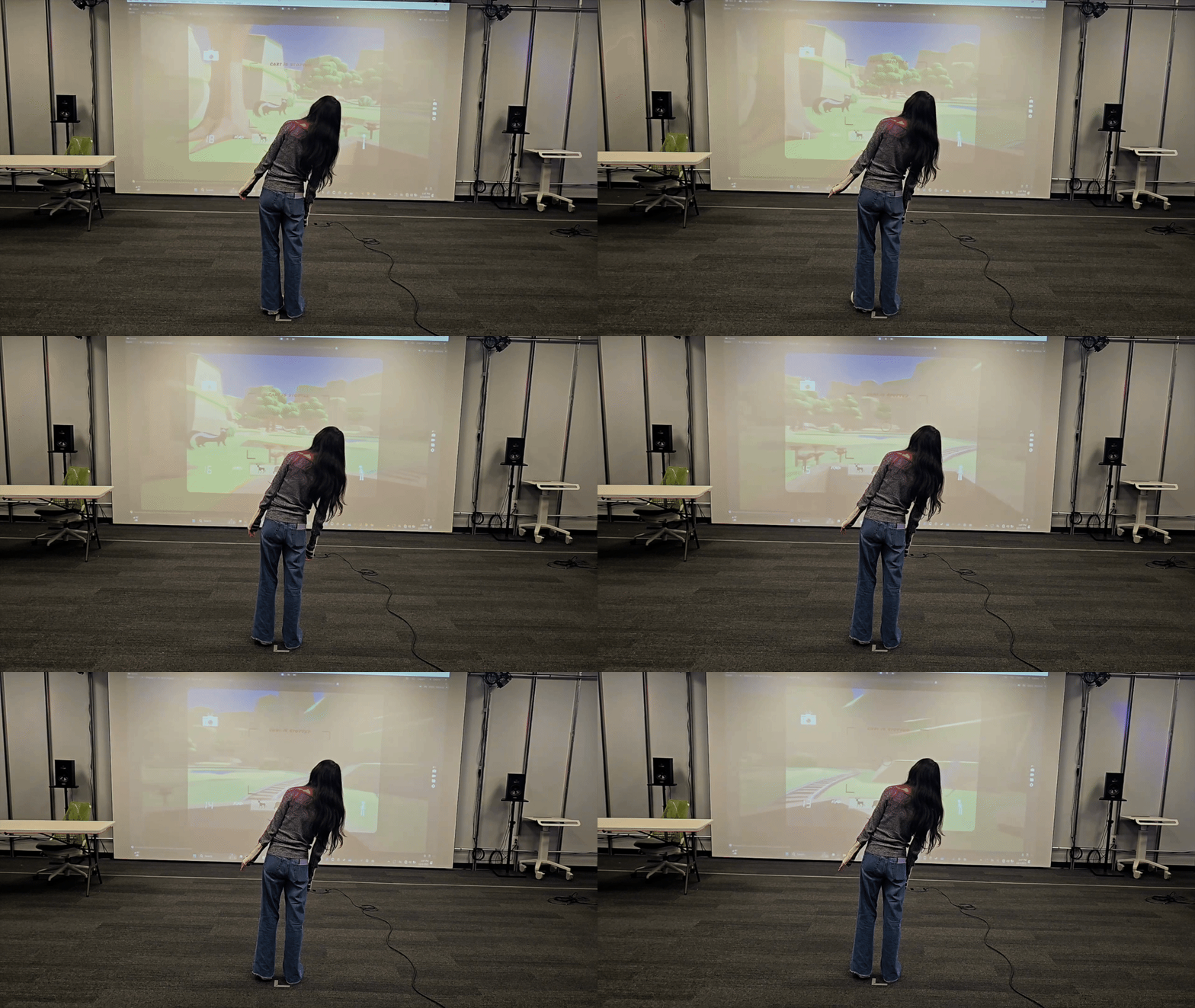
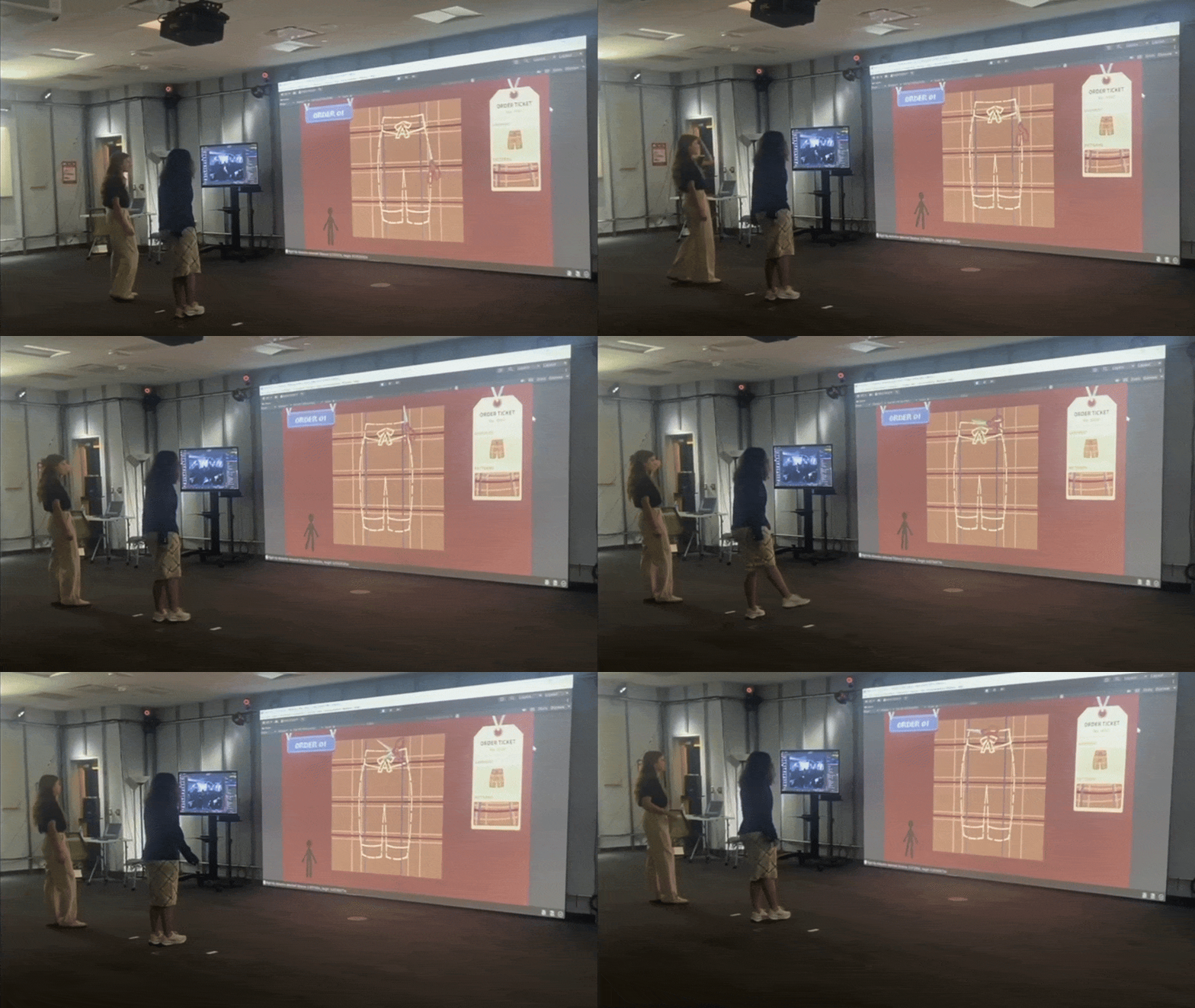
A Unity toolkit that transforms professional motion capture into an accessible input system—enabling users to build experimental motion-controlled games in hours instead of weeks.
RoleSolo Developer
TimelineFall 2025 (1 semester)
ContextIndependent Study, UT Austin
CollaboratorsProf. David S. Cohen (AET), Dr. Hao-Yuan Hsiao (Kinesiology)
UnityC#Captury Motion CaptureUnity Input System
The Body as a Controller5 Modular Tracking Systems4-Player Multiplayer SupportTested by 30+ StudentsOpen Source
"How do you make a stroke rehabilitation game with markerless motion capture?"
In my early years in Arts and Entertainment Technologies at UT Austin, I envied the few students who had the technical know-how to use complex equipment in the Lab for Immersive Media (known as The LIM Lab), featuring both marker-based and markerless motion capture and many other exciting, cutting-edge technologies that seemed so elevated and inaccessible at the time.
In the Spring of 2025, I was enrolled in a class called Games for Good, where we worked with a researcher to create a game of use in the health sector—a game for good. That semester, we decided to leverage the LIM lab to create games to help stroke survivor rehabilitative physical therapy seem less grueling. In this class, I created the beginnings of what would become the Captury Unity Toolkit.
I had never created a Unity toolkit before, nor had I ever used any sort of motion capture system. In this class, I saw that I had an opportunity to create a one-size-fits-all system for all five minigames our 30 students were undertaking to create. There was no need to create multiple systems, reinventing the wheel for each game, but instead I would create one system that would benefit all of us.
The first iteration was a success, and as the Fall semester approached, I decided to spend my time tweaking and honing this system into the Captury Unity Toolkit. The goal was to make an input system for a Captury skeleton, treating the body as a controller. This way, it would be way easier to initiate interactive experiences with markerless motion tracking in Unity, saving future developers valuable time during the coming semester and beyond.
From Prototype to Toolkit
The Proposal
The primary goal of this project was to produce a Unity toolkit and supporting documentation to allow users to easily incorporate motion capture input into their games. I aimed to:
Provide an easy-to-use set of tools for capturing body, arm, leg, and hand motion data
Develop customizable settings that allow users to map movements to different gameplay actions
Create example projects demonstrating the plugin, using the Fall 2025 Games for Good class as a test case
This project directly connects to my career aspirations of working with interactive technologies, motion capture, experimental game design, and XR development. By developing a tool that others can build upon, I wanted to deepen my own technical skills, strengthen my XR development portfolio, and contribute to the AET community.
Core Principles
Modular
Enable only what you need
Configurable
Different presets for different games
Intuitive
5 minutes to set up, not 5 hours
Extensible
Future developers can build on it
"Your Body as a Controller"
Just like a gamepad has buttons and joysticks, the body has natural input points. This toolkit maps those movements to very usable numbers and buttons using Unity's Input System. My vision for this project is to see people make unique, interesting experiences that stretch the possibilities of XR development. If they don't have to spend as much time developing inputs, future developers can focus on stretching the limits of immersive development.
Architecture Overview
One of the biggest challenges I faced when creating the original prototype in the Spring of 2025 was that only one script can read a bone at a time; I knew that the new system would need to be modular due to this important limitation. I also knew that different projects required different control schemes, so I wanted to create functionality to account for this. I would ensure that the user could enable only what they need, with the ability to swap configurations very easily. Because of this, I decided to go for a modular approach with a centralized control system.
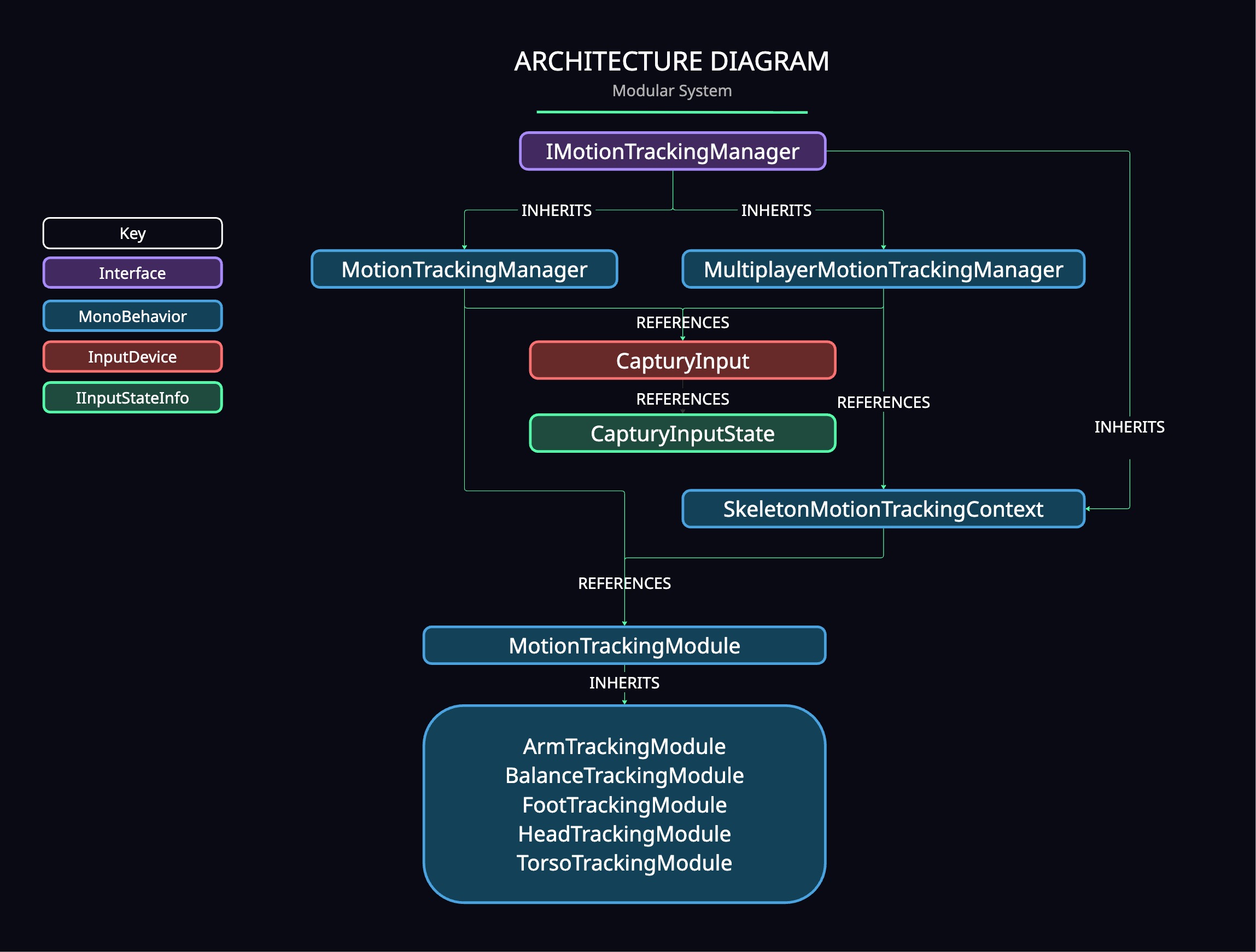
The IMotionTrackingManager is an interface that MotionTrackingManager and MultiplayerMotionTrackingManager inherit from. It was important to the creation of the Multiplayer system, as I will describe below. These both reference CapturyInput, which uses CapturyInputState to create the states for different movements which are reflected in the InputActionsAsset, which is how the actions are accessed in code.
The main difference between how the MotionTrackingManager and MultiplayerMotionTrackingManager operates is the struct SkeletonMotionTrackingContext. For multiplayer, the SkeletonMotionTrackingContext holds skeleton data and motion modules for each player in order to distinguish between skeletons. Both the MotionTrackingManager and the SkeletonMotionTrackingContext hold a list of MotionTrackingModules. All five of the different module types inherit the MotionTrackingModule base class, and are created based on configurations.
Configuration System
A simple way to create configurations is also very important to the architecture of the toolkit. I decided to create a ScriptableObject class as a MotionTrackingConfiguration that could hold all of the exposed variables for the modules. MotionTrackingConfiguration is a ScriptableObject that holds information about if modules/movements should be tracked, the sensitivity associated with the module, and different thresholds and settings about tracking the associated movements and joints. It also contains the specific names of every joint on the skeleton and is set at default to the correct names that come with the Captury plugin. Swapping between configurations is simple with a method already created in the MotionTrackingModule class.
Calibration System
Many modules depend on relative positioning and knowing where "neutral" is. In the previous version of this toolkit, I learned that calibration is very important, and developers need as much control over calibration as possible. In addition to keeping the calibration delay parameter exposed, I also included a Recalibrate function in the MotionTrackingModule class, so that users can recalibrate neutral positions as needed.
The Pipeline: From Movement to Input
Before diving into the modules, it helps to understand how movement actually becomes game input. The pipeline has three stages.
Stage 1: Camera Capture
The LIM Lab's camera array captures the player from multiple angles. These are high-speed infrared cameras positioned around the room, constantly tracking anyone in the capture volume. Unlike marker-based motion capture, the Captury system doesn't require you to wear a special suit covered in reflective dots—it reconstructs your skeleton from the camera footage alone.
Stage 2: Skeleton Generation
The Captury software processes those camera feeds in real time and generates a 3D skeleton. This skeleton is a hierarchy of joints—head, neck, spine, shoulders, elbows, wrists, hips, knees, ankles—each with position and rotation data updating dozens of times per second. Captury streams this skeleton data over the network.
Stage 3: Toolkit Interpretation
Unity receives that skeleton stream through the Captury plugin. At this point, we have a moving skeleton in our game engine, but it's just raw joint data. That's where this toolkit comes in: it interprets the skeleton's movements and translates them into input actions that game developers already know how to use.
The Five Modules
Each module inherits from a base class, MotionTrackingModule. This class holds everything that each class repeats, and holds several abstract methods that each module overrides, including Calibrate, UpdateTracking, the boolean HasRequiredMethods, and the string array GetRequiredJointNames.
For each module, I'll cover which joints it tracks, which movements it detects, how those movements are tracked, any research that informed the approach, and technical challenges encountered.
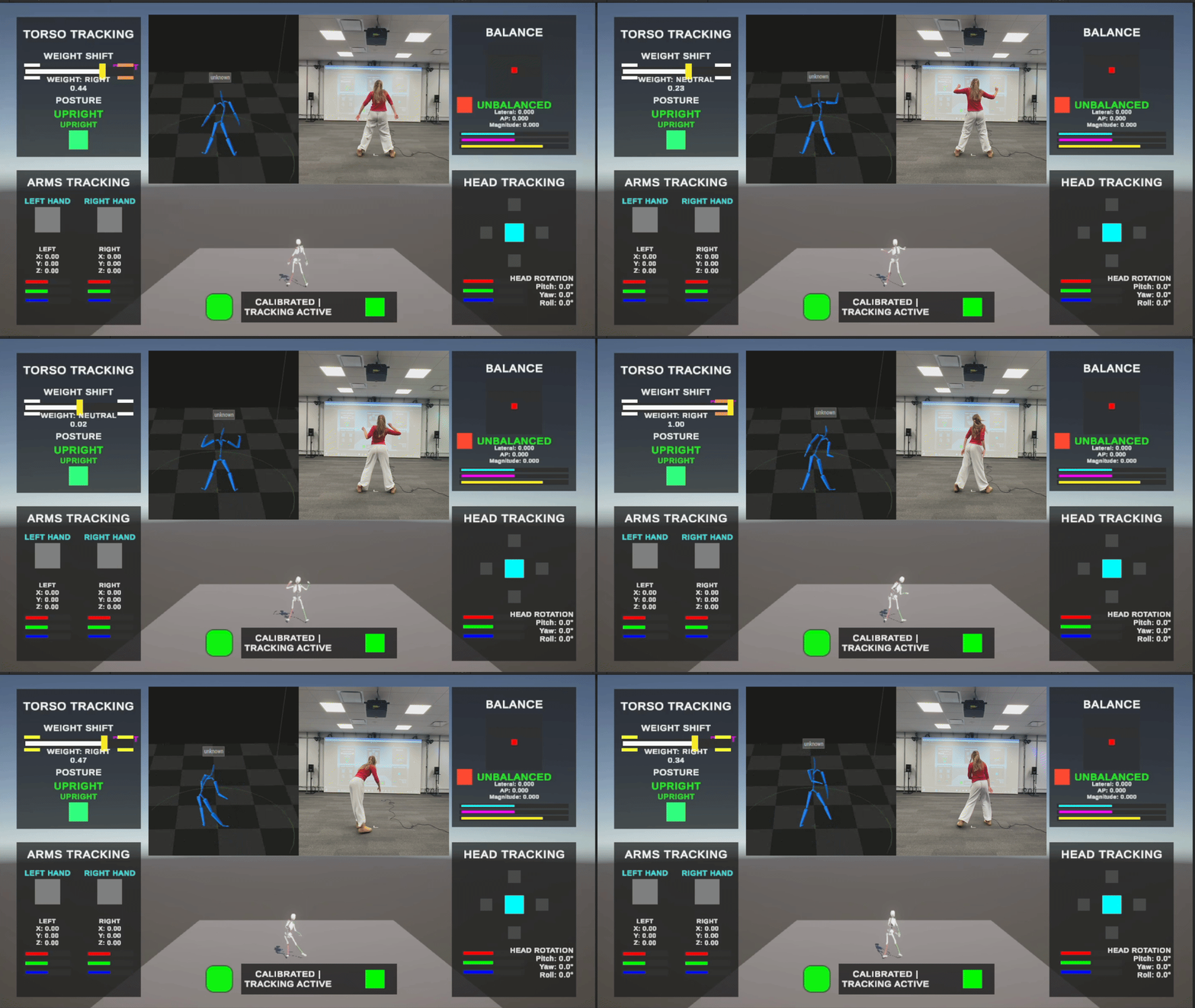
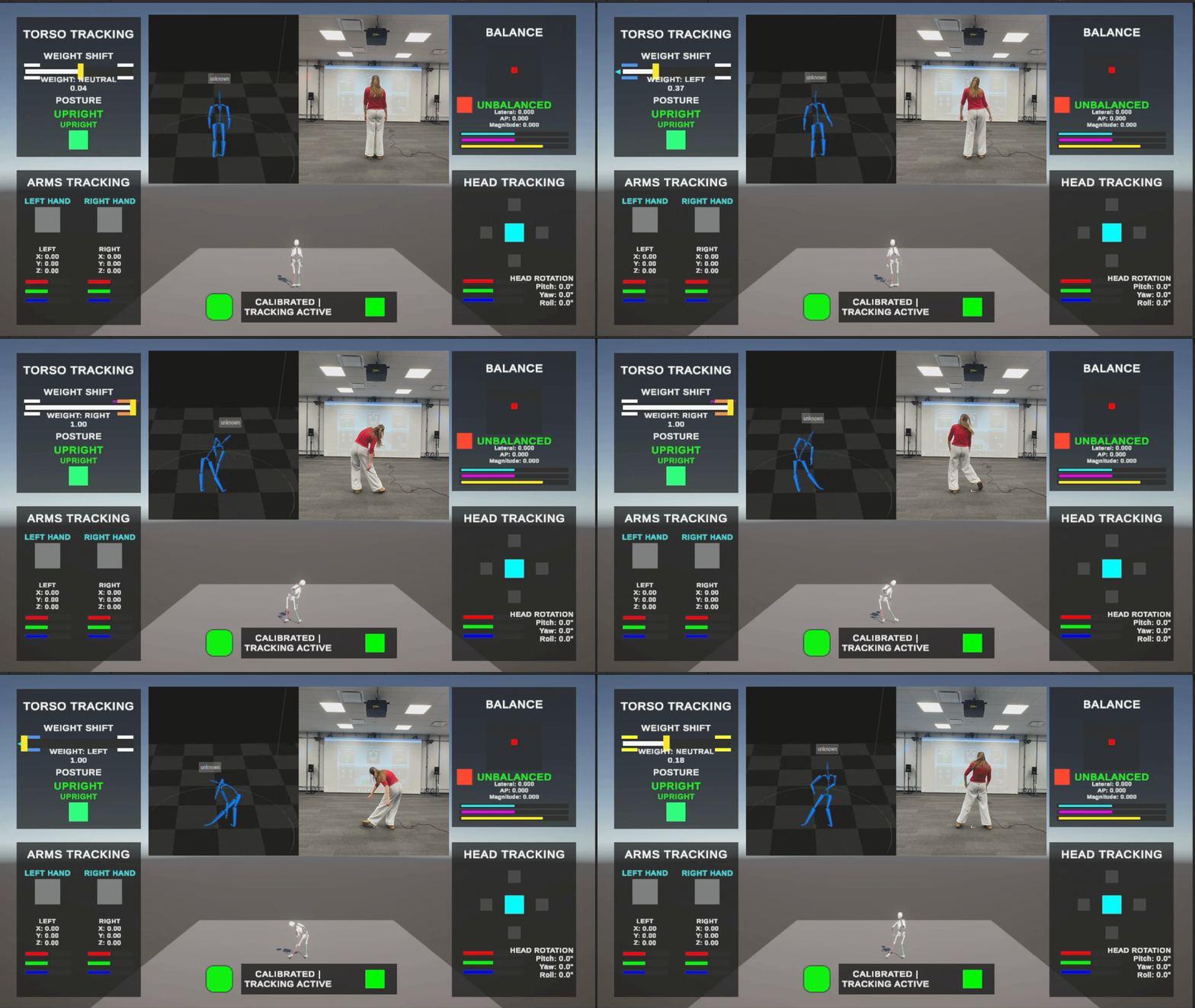
4.1 Torso Module
I began with the Torso module because I had already developed controls for this in my previous work with Games for Good. I had tracked weight shifting, and I had previously encountered problems with relative positioning that would become a common theme in developing these modules. I wanted to create a system that would work regardless of the player's position in the room, so I knew I would have to develop a workaround for that.
The Torso module tracks:
Weight shift (left/right) · Posture (upright vs bent over) · Pelvis position (XYZ)
Weight Shift
Weight shift is calculated by initially taking the position of the pelvis as compared to the lowest joint in the spine and then multiplying it by the sensitivity level of the module. This number is divided by the weight shift threshold defined by the configuration, then mapped from -1 to 1 to create an axis. The WeightShiftLeft and WeightShiftRight button states activate based on threshold crossings.
Posture Detection
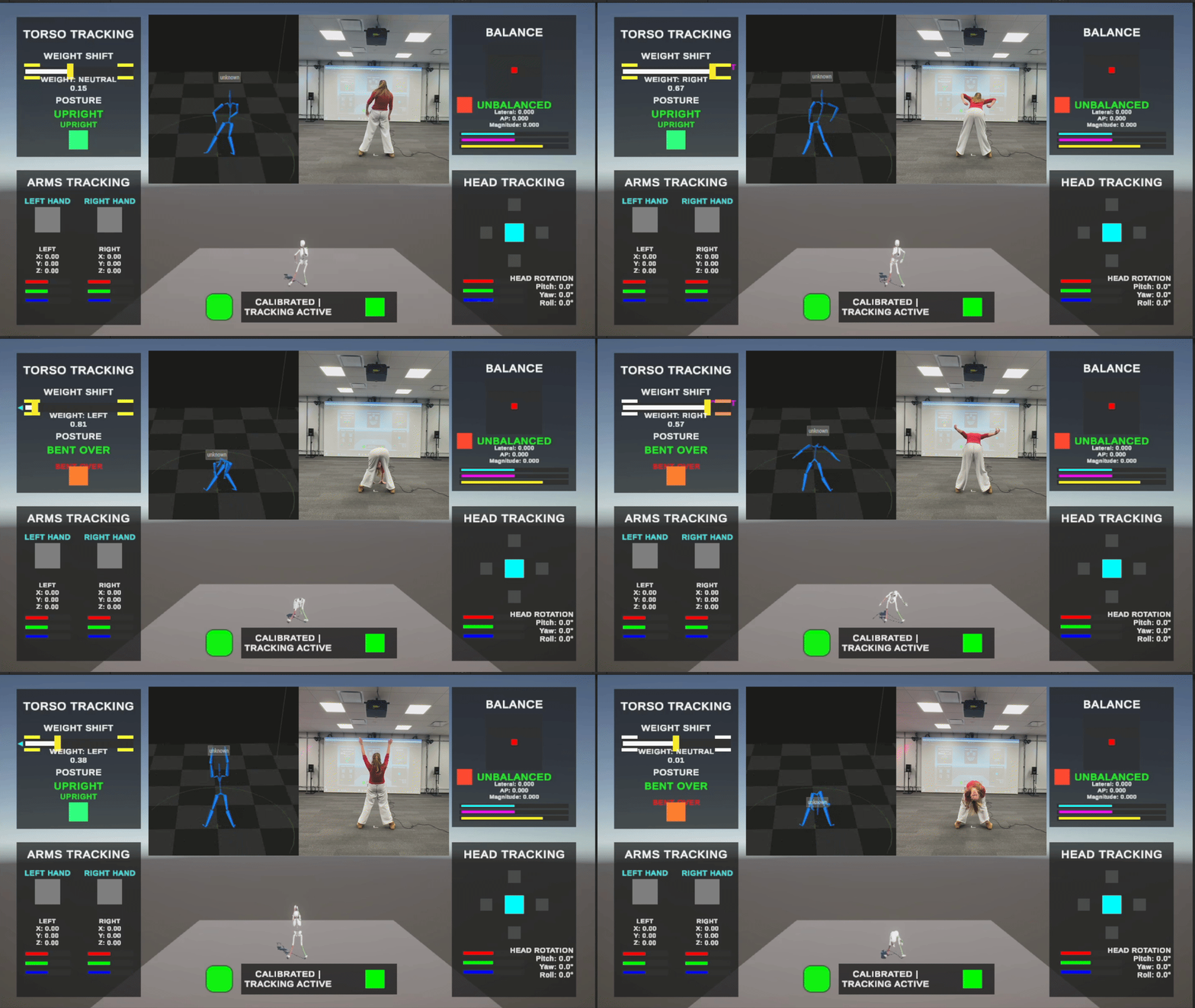
To determine if the skeleton is bent over, the absolute value of the relative rotation is taken. If the rotation difference is more than the bent over angle threshold (set at 30 degrees in the default configuration), the skeleton is determined to be bent over. This is communicated through a button state.
Technical Challenge: Distinguishing weight shift from walking. The solution was to track the relative position between pelvis and spine, as well as have a whole body movement threshold (set at 3 in the default configuration). If the movement ratio of the spine to pelvis is greater than the threshold, then the shift amount is automatically set to 0.
4.2 Foot/Leg Module
The second module I developed was the Foot/Leg module, which again I had a basis for from my previous work in Games for Good. I knew from the start that Dr. Hsiao, the researcher we had worked with in that class, is particularly interested in creating games with walk detection. Specifically, Dr. Hsiao's research focuses on gait analysis—the study of how people walk and the stride-to-stride fluctuations that can reveal everything from fall risk to neurological conditions.
The module tracks:
Foot raised/lowered states · Hip abduction · Foot position · Step detection · Walking state · Walking speed · Gait analysis metrics (step timing, asymmetry, cadence, consistency)
Joints tracked: Left foot, right foot, spine (used instead of pelvis to avoid conflicts with Torso module)
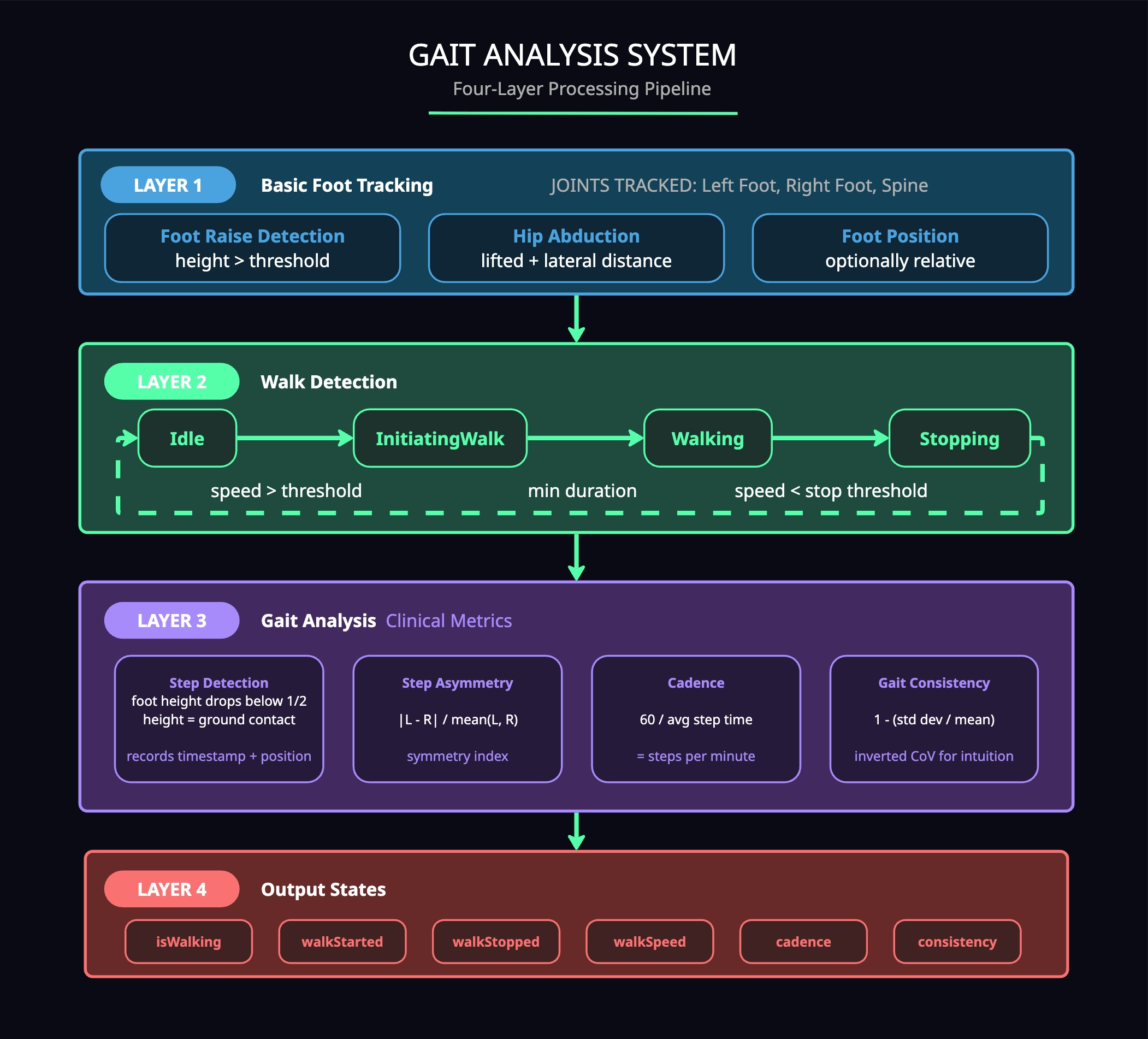
I designed a four-layer system where each layer builds on the previous one.
Layer 1: Basic Foot Tracking
This layer always runs. Foot raise detection checks if the foot height above the calibrated ground exceeds a threshold. Hip abduction tracking checks two conditions: the foot must be lifted past a minimum height, AND the 2D distance from the foot to its neutral position must exceed the abduction threshold. This prevents false positives from just lifting your foot straight up.
Layer 2: Walk Detection
Uses a state machine with four states: Idle → InitiatingWalk → Walking → Stopping. I calculate current speed by looking at the last 30 frames of spine position history (~half a second at 60fps). The state machine uses separate start and stop thresholds to prevent jitter—you have to cross above the walk threshold to start, but you don't stop until you drop below a lower threshold.
Layer 3: Gait Analysis
This layer took the most research. When a foot drops below half of the minimum lift height, the system considers that ground contact and records a step event with timestamp and position. I maintain separate contact times for each foot and a history of recent step times.
Step Time Asymmetry
Uses the symmetry index: |L - R| / mean(L, R). This approach is scale-invariant—it doesn't depend on overall walking speed—and doesn't require knowing which side is the "bad" side, important for rehabilitation applications. Studies show that a symmetry index below 10% indicates normal, symmetrical gait.
Cadence
Calculated as 60 / average step time = steps per minute. Clinical research indicates healthy adults average 90-120 steps per minute for comfortable walking, so I had clear target ranges for the default configuration.
Gait Consistency
Based on coefficient of variation (standard deviation / mean). Clinical research shows that gait variability is closely related to fall risk. However, presenting variability directly would be confusing for non-scientists—a higher number meaning "worse" felt counterintuitive. So I inverted it: consistency = 1 - CoV, clamped between 0 and 1. This way, 1 means perfectly consistent walking and 0 means highly inconsistent—much more intuitive for game feedback.
Layer 4: Output States
The final layer outputs the walk states. The isWalking state is true when in the Walking state, and walkStarted and walkStopped fire on the frames when those transitions happen. Walk speed is also exposed for games that want to use it.
Technical Challenges: Clinical-grade gait analysis required maintaining 300 frames of position history, detecting the exact moment of heel strike from position data alone, filtering false positives from body sway, and doing real-time step time calculations. I also needed at least several gait cycles before the consistency calculation would be meaningful, so I created a requirement for a minimum number of steps before reporting that metric.
4.3 Arm Module
The Arm module tracks hand position and hand raise states for both arms. Joints tracked include the hands and shoulders on both sides.
Relative Positioning
Like the other modules, the Arm module uses relative positioning—measuring the hand relative to the shoulder rather than in world space. During calibration, I store the neutral hand-to-shoulder offset. During tracking, I calculate the current offset and subtract the neutral to get relative movement. This works consistently no matter where you're standing in the capture volume.
Hand Raise Detection
Requires two conditions: the hand must be above the shoulder by more than the threshold, AND the hand must have gained at least a minimum height from its neutral position. In testing, this worked well, though I noted that people may want to lower the threshold depending on their game.
4.4 Head Module
The Head module tracks head position, rotation, and directional states. Joints tracked are the head and neck.
I went through several iterations on this one. In my first pass, I tried tracking gestures like nodding and shaking—detecting when rotation on an axis passed a threshold until we timed out or came back to neutral. Shaking worked, but nodding was weird. I started wondering if it would be better to just do simple directional states (up, down, left, right) since nodding and shaking can be derived from those anyway.
In my second pass, I switched to simpler directional detection. Up/Down used pitch rotation, Left/Right used yaw. But I ran into a problem: Left/Right was working, but Up/Down was not. Same issue I had with weight shift—the detection could be cheated by just turning to the side. I needed to make everything relative to another bone.
The solution in my third pass was tracking the difference between head and neck. Head position now tracks the head-to-neck offset minus the calibrated neutral offset. Head rotation works the same way—the difference of head-to-neck rotation offset minus the calibrated neutral. For gesture detection, up/down uses roll (Z rotation) where positive means down and negative means up, and left/right uses yaw (Y rotation) where positive means right and negative means left.
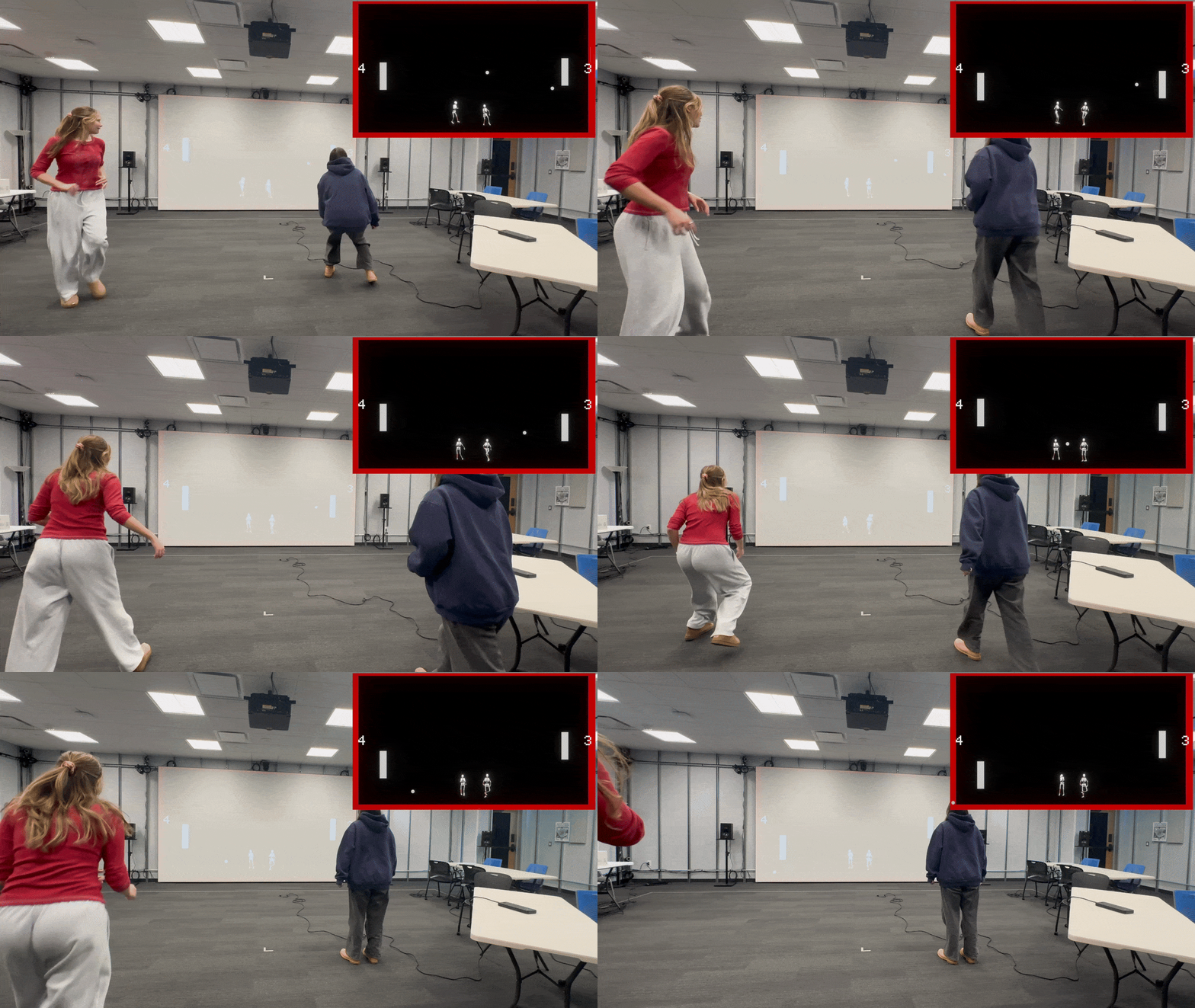
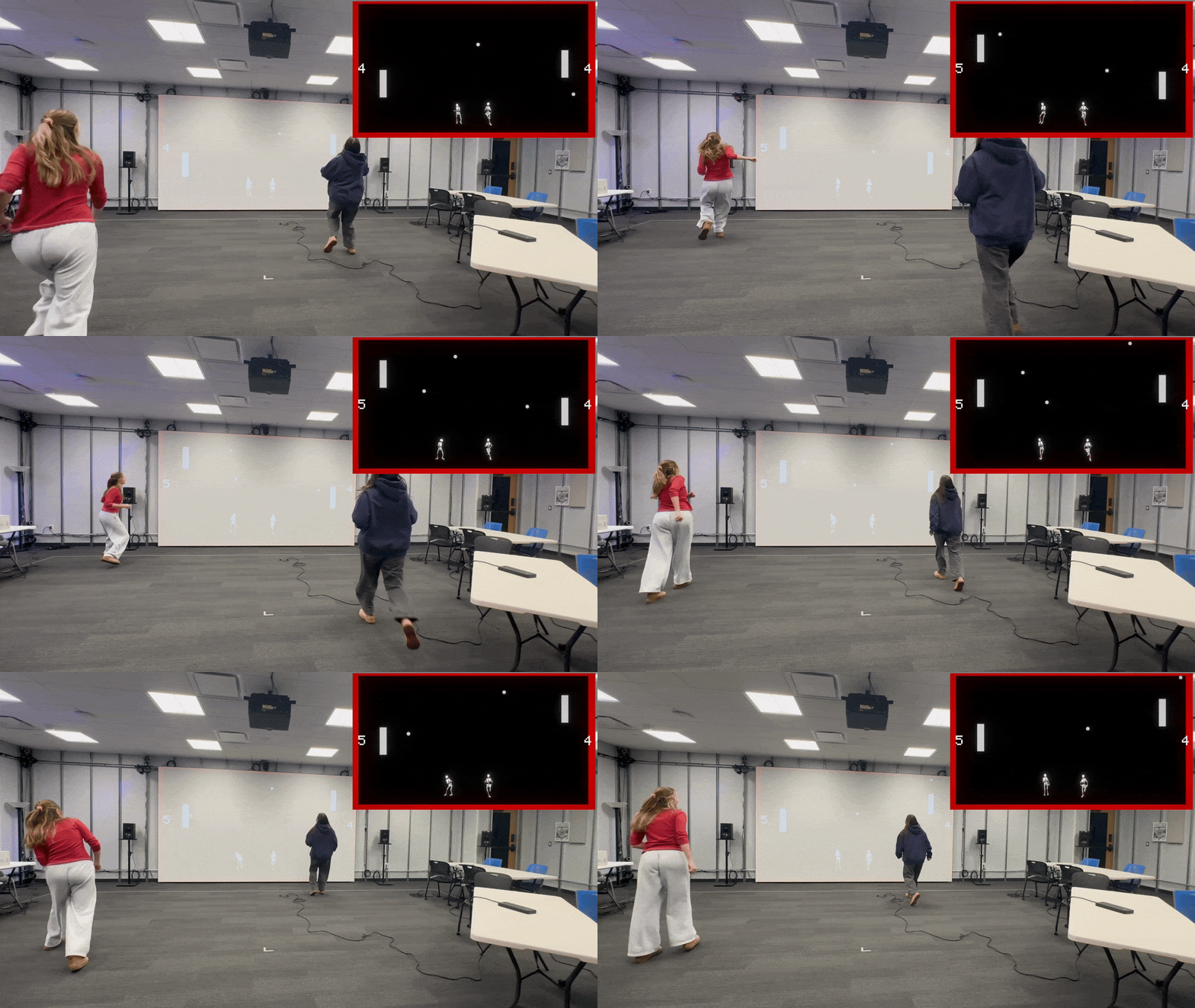
Why Head Tracking for Multiplayer: Head tracking turned out to be perfect for multiplayer because the head is always visible, stable, predictable, and provides fast response. I used it for the 4-player Pong demo where each player controls their paddle by turning their head.
4.5 Balance Module
The Balance module was the biggest technical challenge of the project up to this point, taking about 40% of my 8-week planned production time. Balance isn't just tracking one joint—it's biomechanics.
The module tracks:
Center of mass position · Lateral and anterior-posterior sway · Sway magnitude · CoM velocity · Balance stability state
Joints required (7 total): Trunk (Spine1), both forearms, both lower legs, both toe bases
I started by researching how center of mass relates to balance. The key insight from biomechanics literature is that your center of mass should not fall outside your base of support. I chose to track center of mass rather than center of gravity because mass is evenly distributed throughout the body. I found papers comparing different approaches to estimating CoM—one showed that for dynamic movement, a whole body marker set is sufficient, and another demonstrated that you can calculate CoM from cameras alone.
Based on what I could understand and implement, my plan was to use mass density numbers from research and compare them to joint positions to calculate center of mass, then track that movement. I found body segment mass fractions from Harvard's BioNumbers database—the trunk is about 50% of body mass, each forearm about 1.6%, and each lower leg about 4.65%.
Iteration Process
First pass: Nothing was relative to position, and the test results were all over the place. Then I realized I hadn't been comparing the CoM to anything—I was supposed to compare it to the foot position.
Second pass: More successful. I started comparing CoM to the base of support, though I wanted to make the foot detection more robust so that raising a foot wouldn't mess up the base of support calculation.
Third pass: I built out the full system. First, I calculate center of mass using the weighted average of body segment positions based on the research. Then I check foot contact to see if both feet are on the ground. Then I update the base of support—are both feet down, just left, just right, or none (jumping/falling)? The key calculation is the distance from CoM to the base of support center.
Sway Tracking
I project the CoM onto the ground plane and calculate a 2D vector from the base of support center. I separate this into lateral and anterior-posterior components, normalize the magnitude, and divide by the base width to make it relative to stance. The threshold is more forgiving for two feet (60% of base width) than for one foot (80%).
Stability Detection
I calculate CoM velocity—slower movement means more stable. If velocity is over the threshold or if the CoM is too far from the base center, you're not balanced. The allowed distance adapts based on contact state: 40% of base width for two feet, 60% for one foot. You're balanced if you have low velocity and you're within your base of support.
Multiplayer System
The Captury system supports tracking multiple people simultaneously, but my toolkit was built entirely around single-player use. I wanted to add multiplayer support without breaking anything for developers who had already built games using the single-player MotionTrackingManager.
The core problem was that my existing architecture assumed one skeleton, one set of modules, and one input device. Everything was stored as single references. For multiplayer, I needed to track multiple skeletons, each with their own modules, their own calibration state, and their own input device. But I also needed the modules themselves to work without modification—a TorsoTrackingModule should not need to know whether it is running in single-player or multiplayer mode.
Architecture Solution
I created an interface called IMotionTrackingManager that both the original MotionTrackingManager and the new MultiplayerMotionTrackingManager implement. The interface exposes the configuration and a method to retrieve joints by name. This way, modules can be initialized with either manager type and work identically.
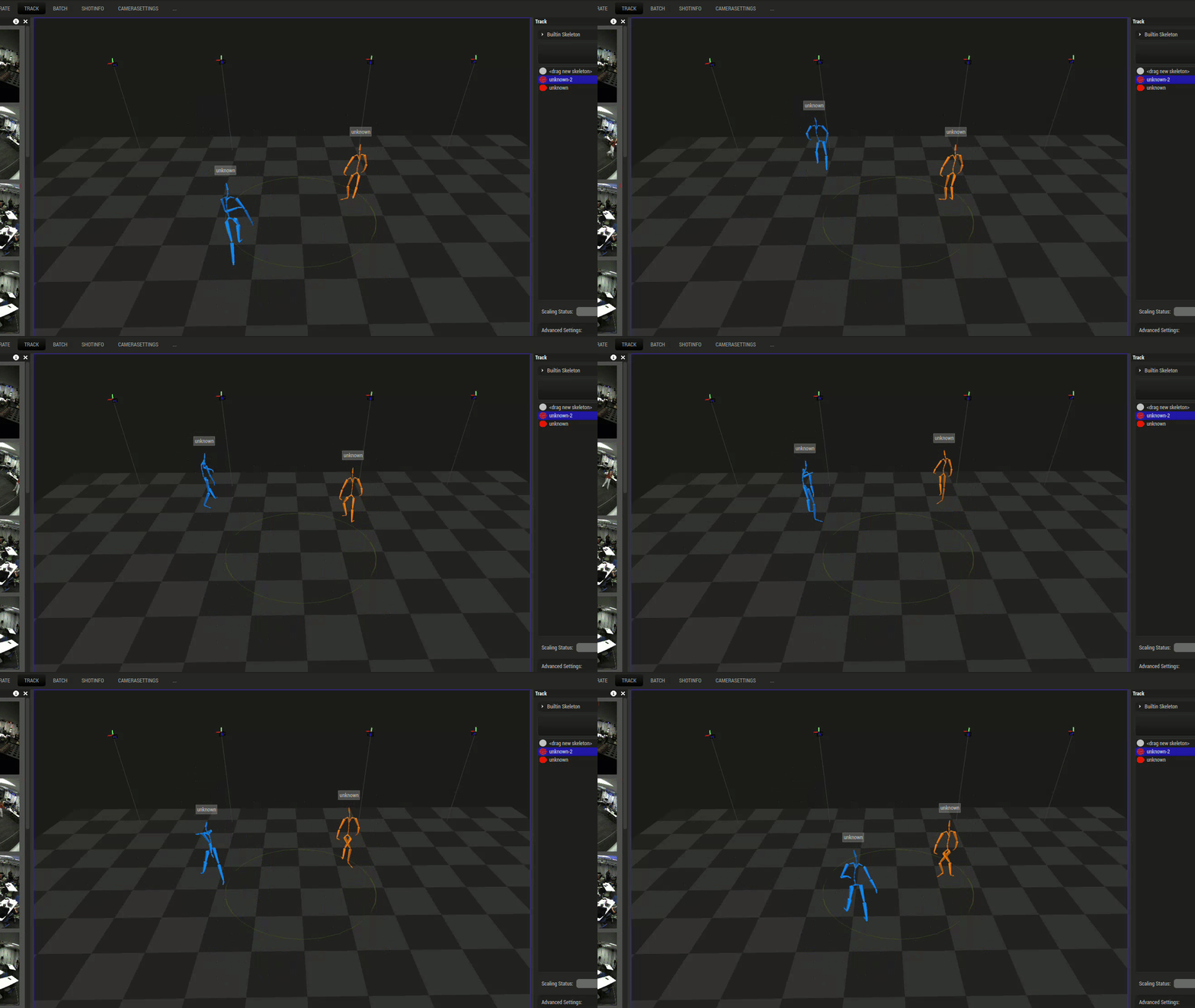
For the multiplayer manager, I created a data structure called SkeletonTrackingData that holds everything associated with a single tracked person: their Captury ID, their player number, their joint dictionary, their list of modules, their input device, and their calibration state. The manager maintains a dictionary mapping skeleton IDs to these data structures, so when a new person steps into the capture volume, they get their own complete tracking setup.
Context Wrapper Pattern
A key part was creating the context wrapper. Each skeleton needs its own SkeletonMotionTrackingContext, which implements IMotionTrackingManager but knows which specific skeleton it belongs to. When a module calls GetJointByName, the context routes that request to the correct skeleton's joint dictionary. This is what allows modules to work unchanged—they think they are talking to a manager, but they are actually talking to a skeleton-specific wrapper that handles the routing.
Input Device Differentiation
For input device differentiation, Unity's Input System supports device usages. When I create a CapturyInput device for each skeleton, I tag it with a usage like "Player1" or "Player2". This happens automatically—the manager finds the next available player number and assigns it. Games can then filter by usage to get input from a specific player's device.
Breakthrough Moment: Creating the multiplayer Pong demo taught me about input map instancing. I initially tried to have all players share the same Input Action Asset, but Unity's Input System doesn't work that way. Each PongPlayer script needs its own instance of the action asset, which it creates by calling Instantiate on the serialized reference. Then each player finds their specific CapturyInput device by checking which one has their player usage tag. Once I understood instancing, the whole multiplayer input pipeline clicked into place.
The multiplayer manager supports up to four players by default, though this is configurable. It handles players entering and leaving the capture volume dynamically, cleaning up their modules and input devices when they leave and creating new ones when they enter. Configuration swapping works across all active skeletons, destroying and recreating modules for each one. Recalibration can be triggered per-player or for all players at once.
Debug UI System
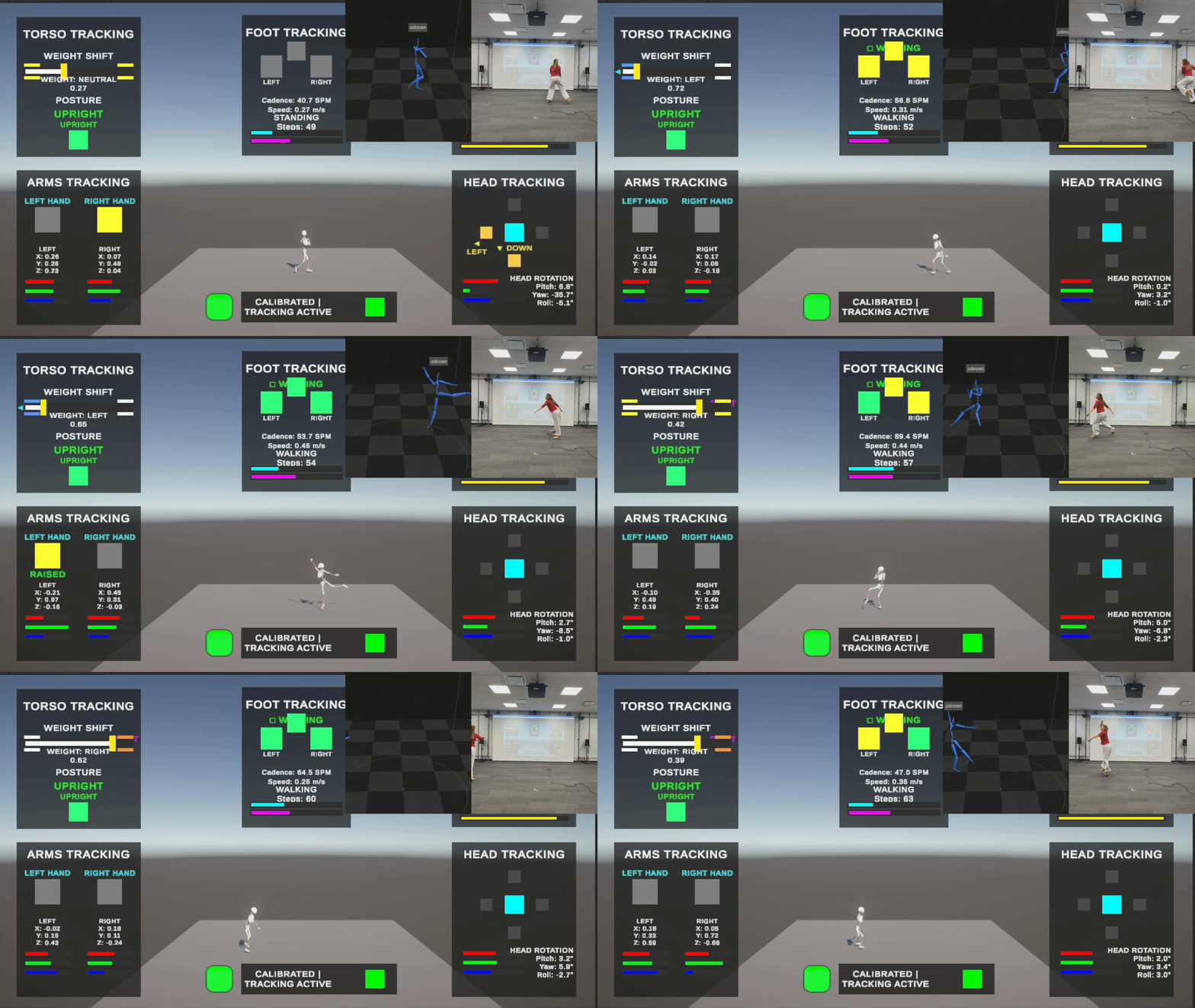
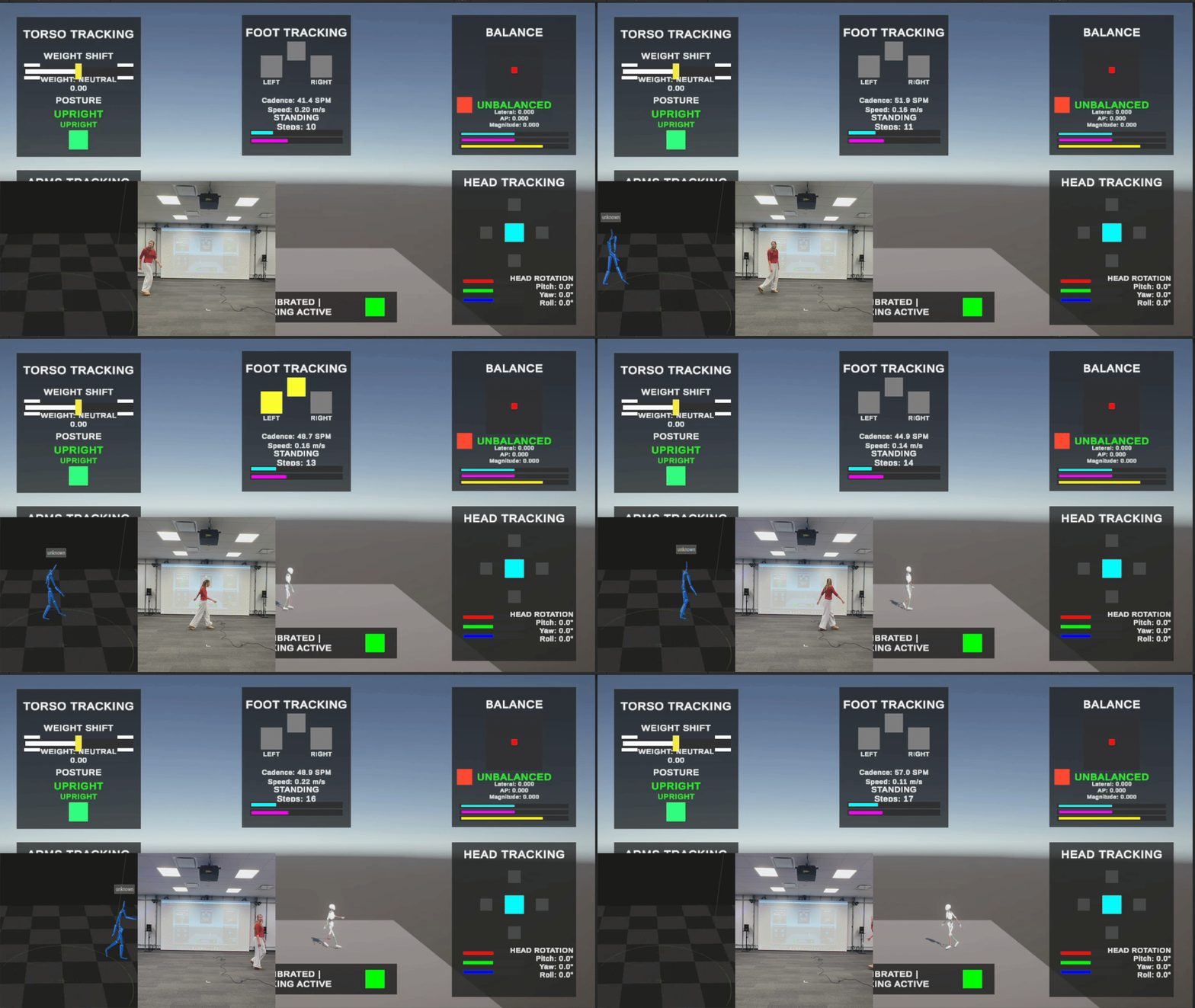
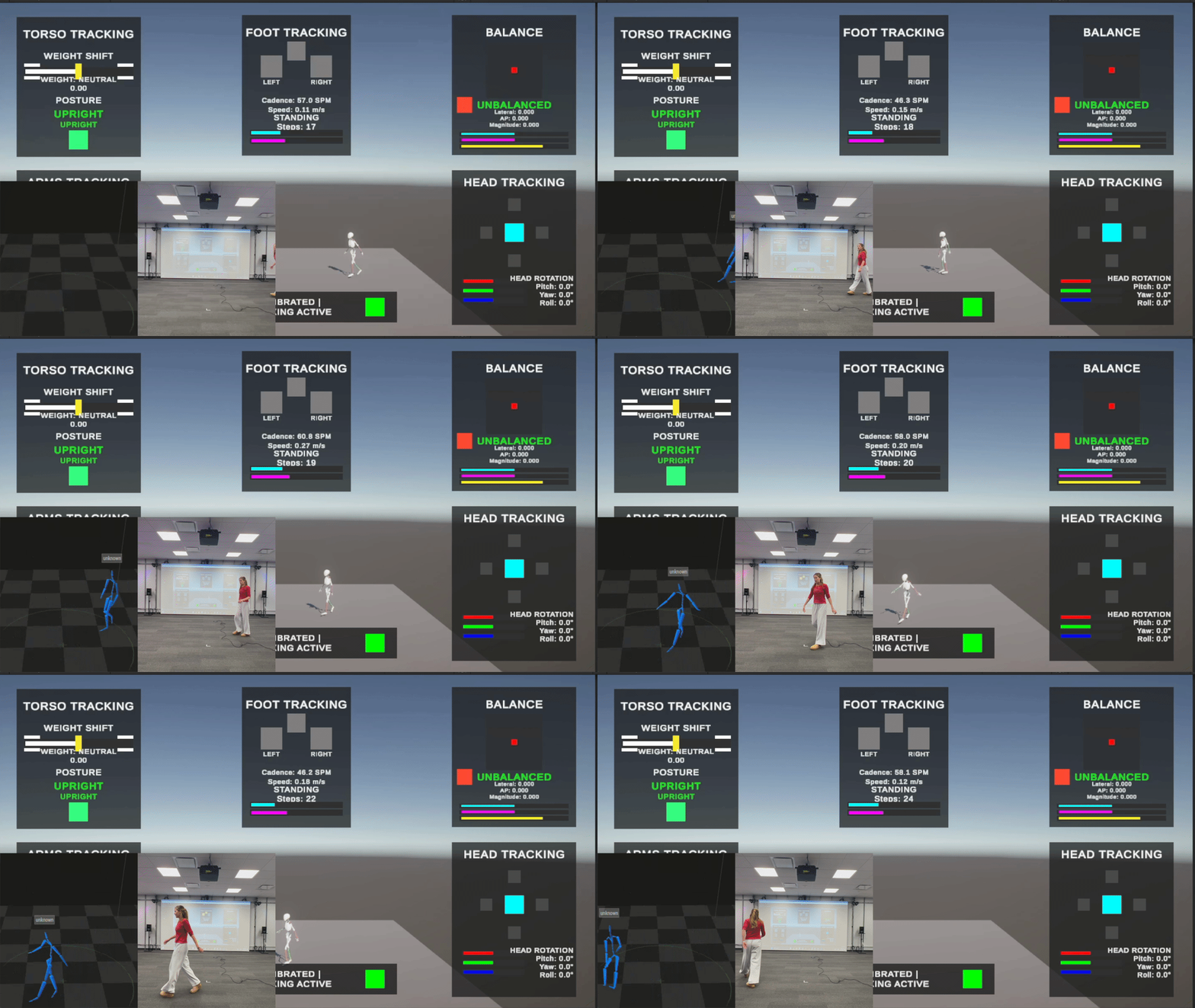
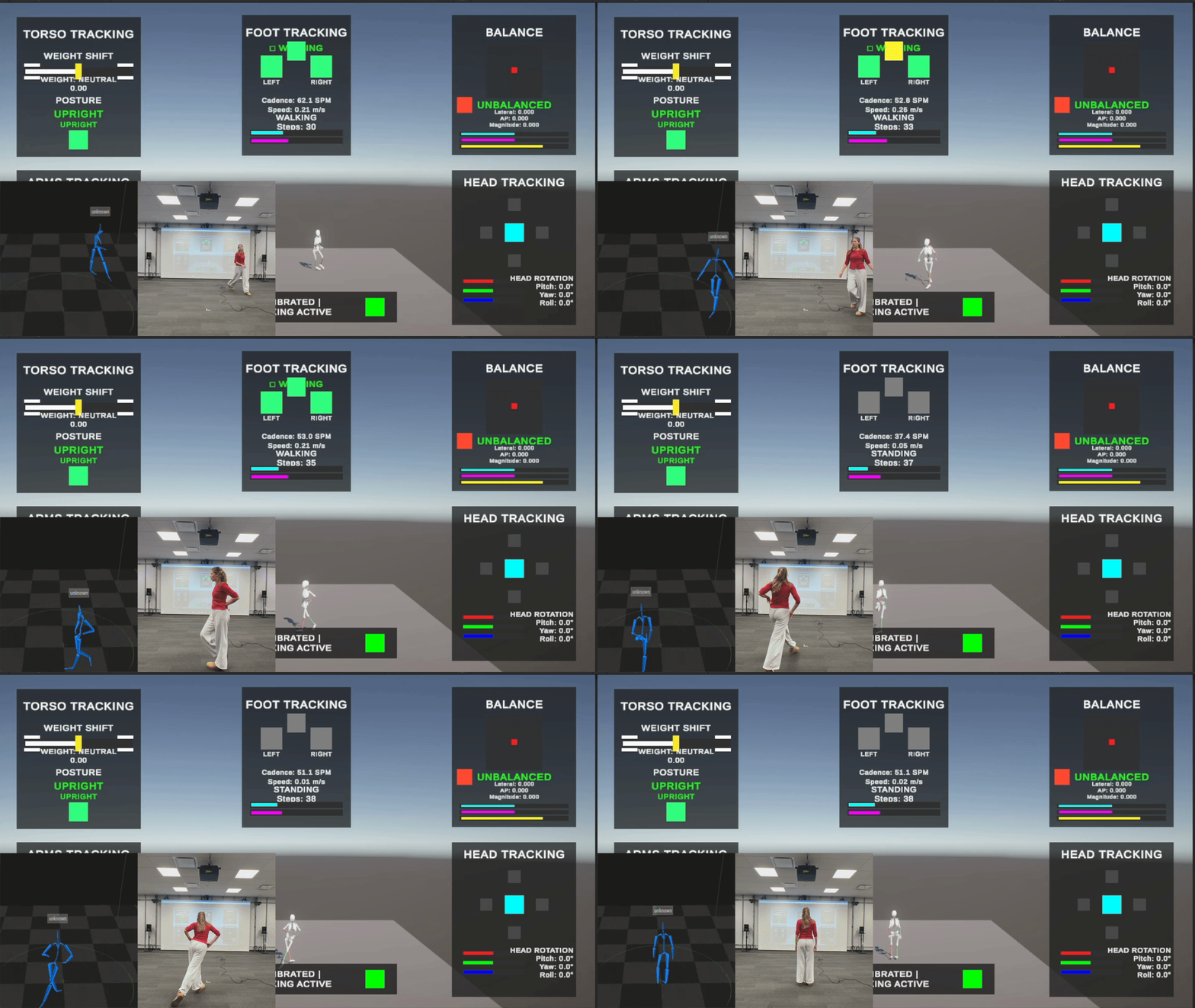
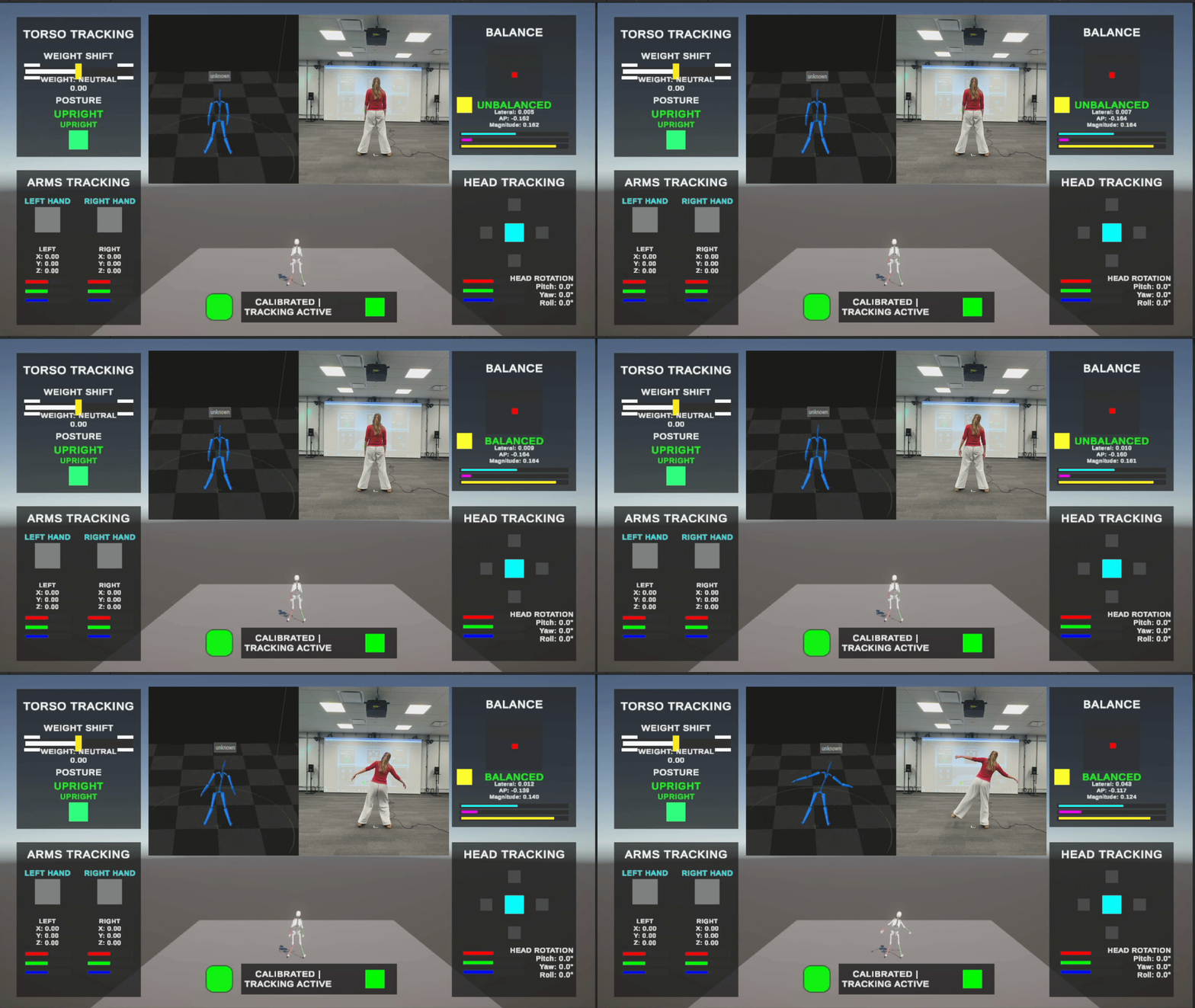
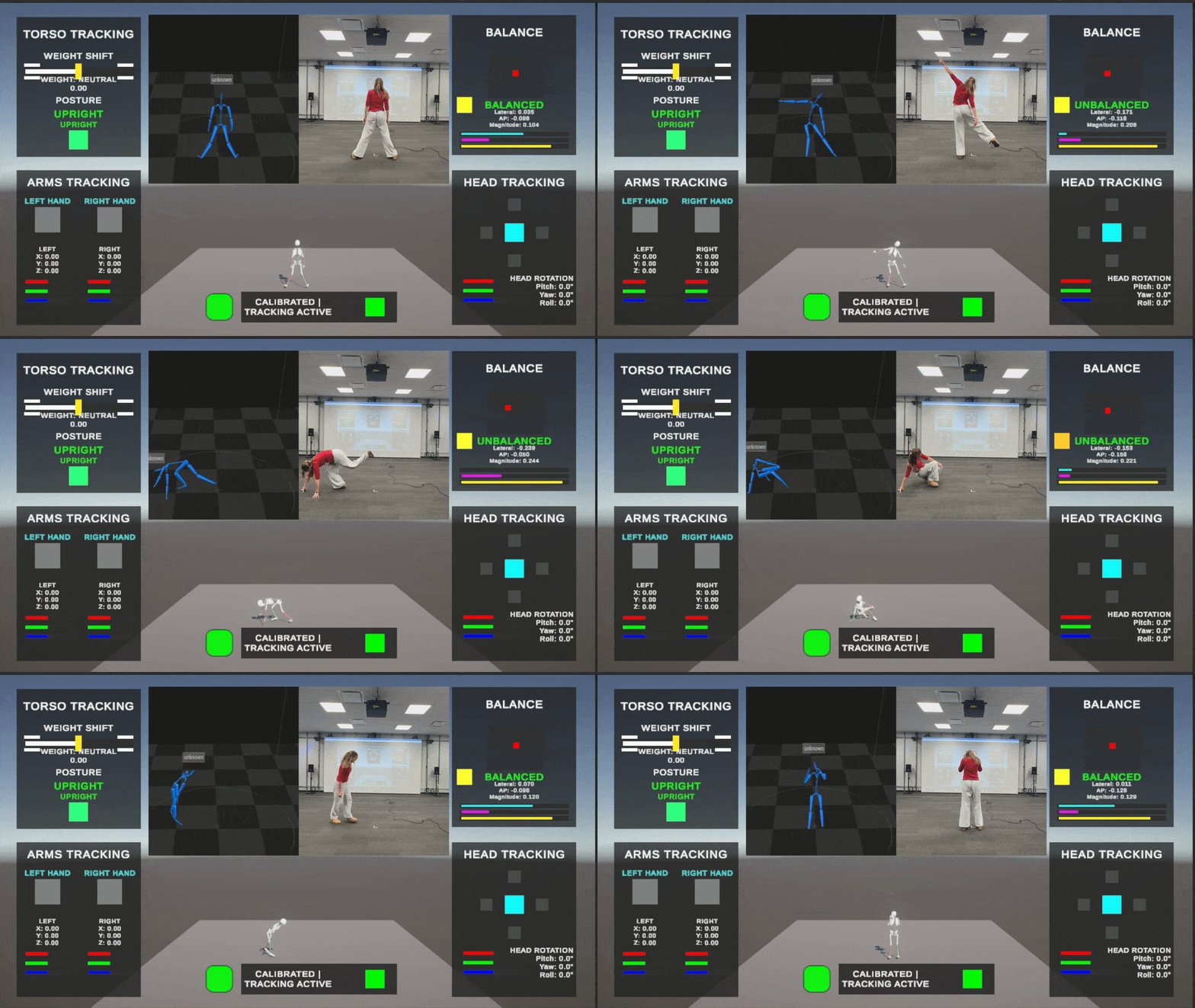
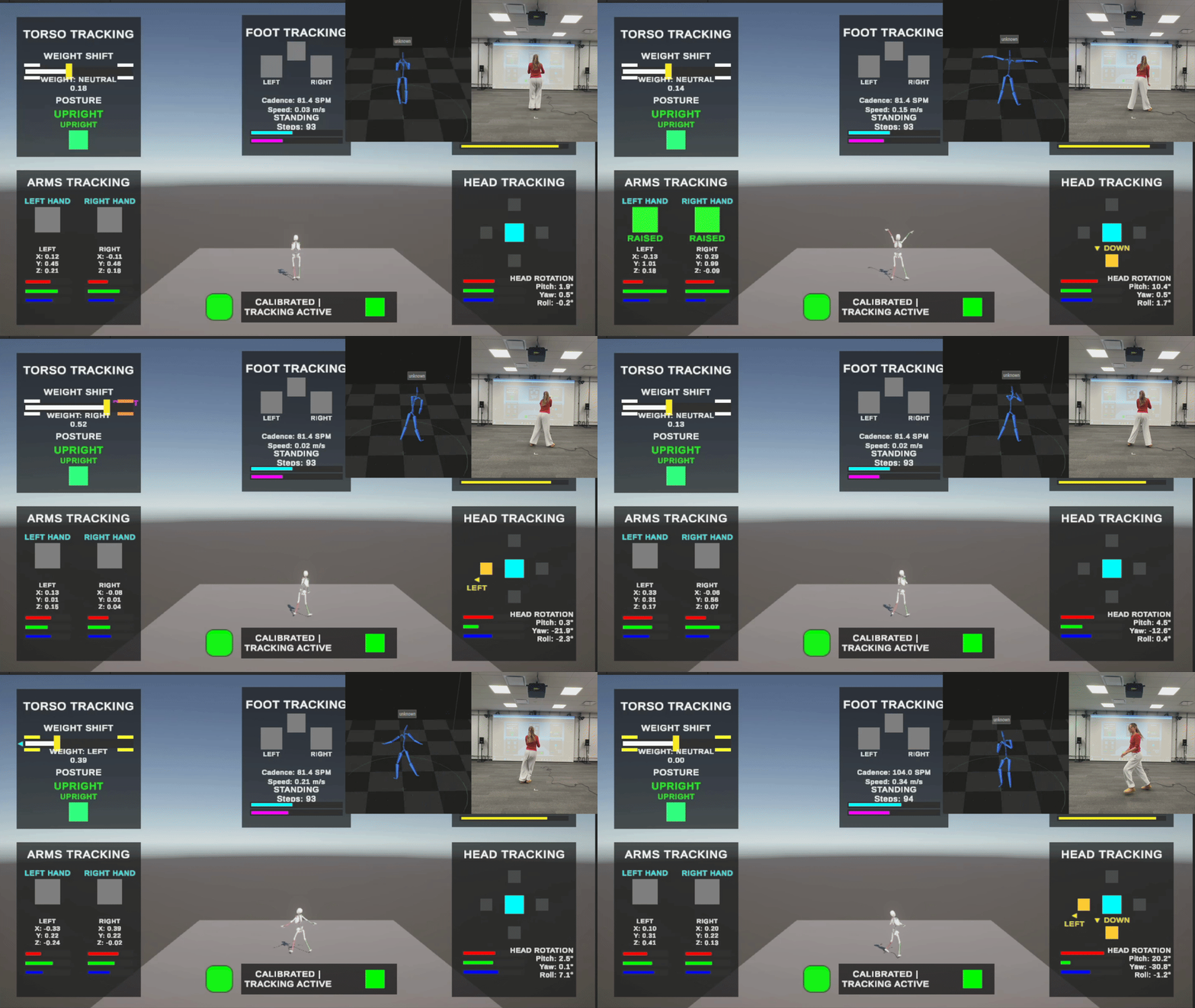
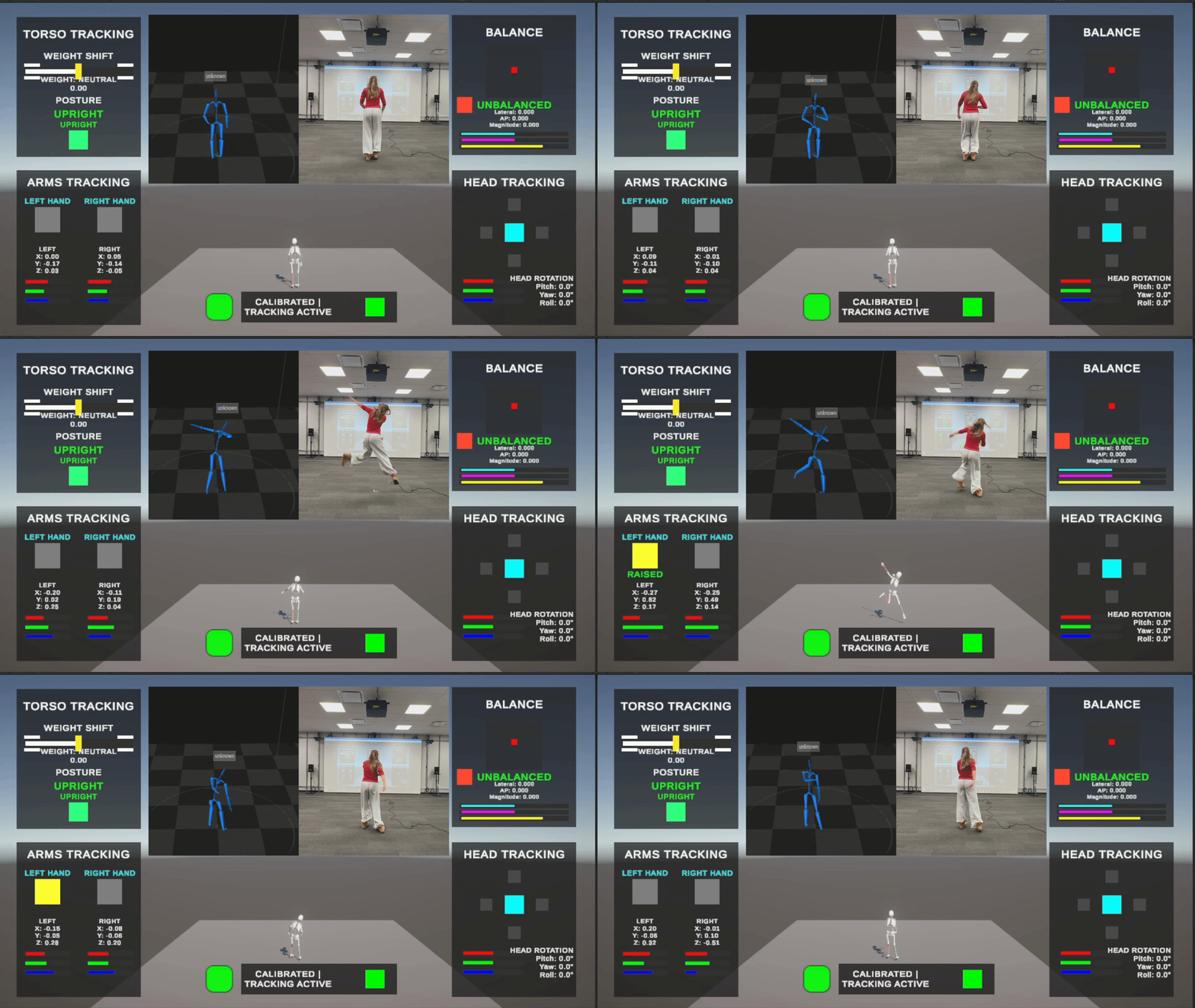
I built a debug UI system initially for my own presentation demo, but it became an incredibly useful development tool for toolkit users.
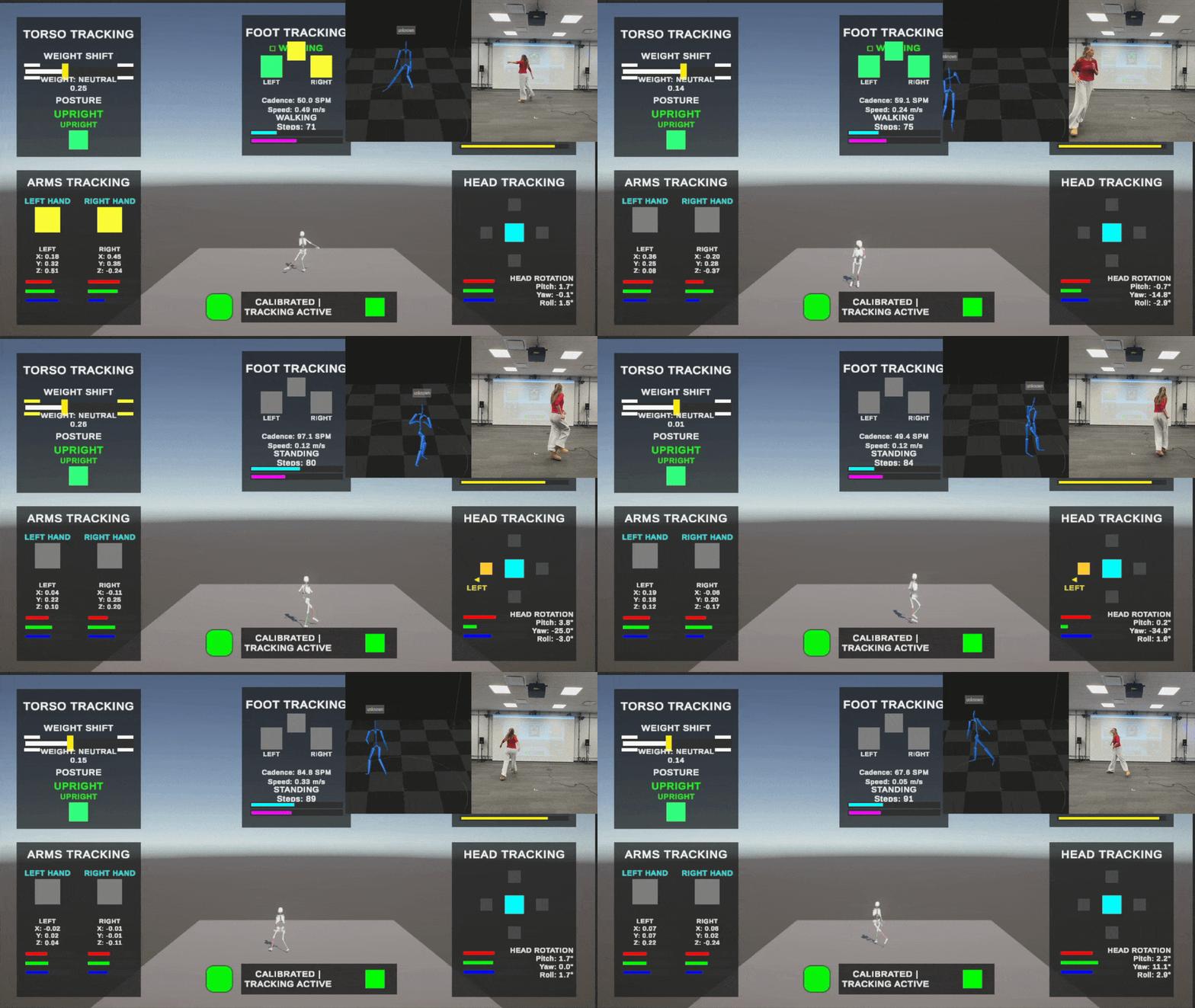
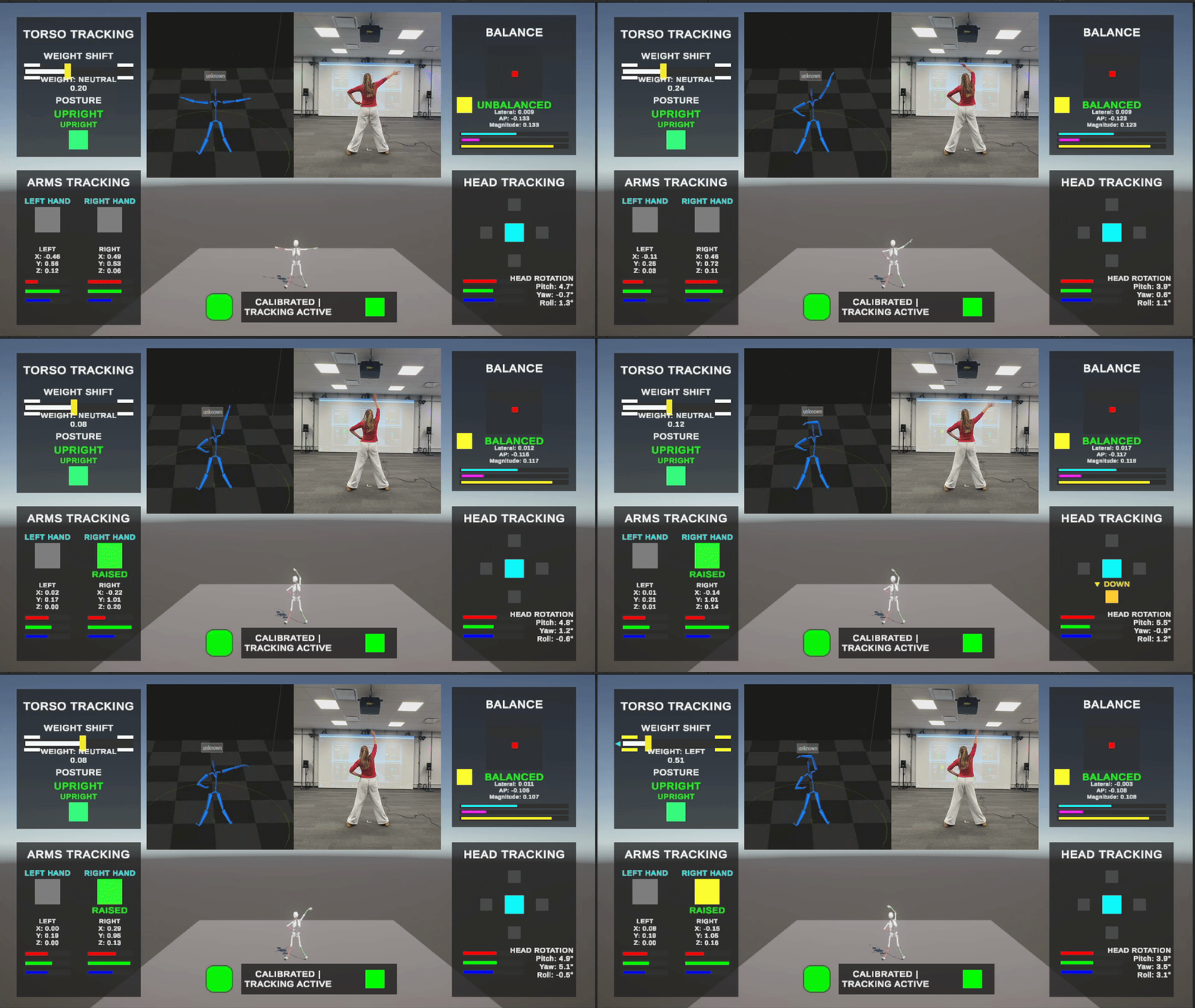
The system has a central manager that reads from the Input System and updates individual UI panels for each module. Each panel visualizes its module's data in real time: sliders for continuous values like weight shift and sway magnitude, indicators that light up when boolean states trigger, text displays for numerical data like cadence and walk speed, and icons that flash with feedback colors when state changes occur.
Visual Feedback System
The feedback system uses timers to create brief visual pulses. When someone raises their hand, the hand icon flashes yellow for a fraction of a second before returning to its state color. When a step is detected, the corresponding foot icon pulses. This immediate visual feedback made it much easier to verify that thresholds were set correctly and that state transitions were firing when expected.
Module-Specific Panels
Each module UI panel mirrors what that module tracks. The balance panel has a 2D visualization showing center of mass position relative to the base of support. The foot panel shows cadence and walk speed with sliders scaled to clinical ranges. The torso panel has a balance bar that moves left and right with weight shift. The head panel shows directional arrows that activate based on head rotation thresholds.
The system is designed to be dropped into any game scene. Developers can enable it during playtesting to see exactly what the motion tracking system is detecting, then disable it for the final build.
Validation and Impact
The real test of the toolkit came when Prof. Cohen's Games for Good class used it for their projects. Around thirty students needed to build motion-controlled rehabilitation games using the Captury system, and most of them had never worked with motion capture before.
Before the Toolkit
Setting up motion capture input in Unity required understanding the Captury SDK, writing code to find and subscribe to skeleton events, manually tracking joint transforms, implementing calibration logic, and then building actual game mechanics on top of all that.
Estimated setup time: 11-22 hours (depending on programming experience)
After the Toolkit
Students drag the MotionTrackingManager prefab into their scene, assign a configuration asset that enables the modules they need, and start reading values through Unity's Input System. The motion capture system becomes an input device like a keyboard or gamepad.
Setup time: 10-15 minutes
Code Reduction
Implementing basic motion controls like detecting when someone raises their hand or shifts their weight requires roughly 50 lines of game code when using the toolkit. Doing the same thing from scratch requires approximately 500 lines, and that code is fragile, hard to debug, and specific to a single game.
Accessibility Impact
Before the toolkit, only students with strong programming backgrounds would attempt motion capture projects. After the toolkit, any student with basic Unity knowledge can build motion-controlled games. The barrier moved from "can you write complex event-driven skeleton tracking code" to "can you read a value from an input device."
Student Feedback
Jo:
"The motion capture toolkit was honestly one of the easiest systems I've worked with. As a programmer, I immediately knew where to find the configs because everything was clearly labeled and well organized. It made setup fast and let me focus on actually building things instead of fighting with the tools."
Jo:
"Helena's motion capture setup in Unity was one of those projects where you can instantly tell how much work went into it. The whole system felt intentional and refined. Everything connected smoothly, the structure made sense, and it never felt like I had to guess what anything did. It's the kind of setup that makes you respect the person who built it."
Outcomes and Deliverables
Over the course of this independent study, I built a complete motion tracking toolkit consisting of several interconnected components.
Five Production-Ready Tracking Modules
Torso: Weight shift and posture
Foot/Leg: Walking detection and gait analysis
Arm: Hand position and raise detection
Head: Rotation and directional states
Balance: Center of mass and stability tracking
Supporting Systems
Multiplayer System: Supports 1-4 players simultaneously with automatic skeleton detection, per-player calibration, and device tagging
Configuration System: ScriptableObject assets that can be swapped at runtime
Debug UI System: Real-time visualization of all tracking data
Example Project: 1-4 player Pong game demonstrating multiplayer head tracking
Documentation: Comprehensive coverage of installation, configuration, and module usage
Broader Impact: Motion capture game development went from being accessible only to seasoned programmers willing to spend days on setup to being accessible to any Unity developer in minutes. The toolkit enabled projects that previous groups could not have attempted, and it will remain available for future classes working with the Captury system.
Bibliography
Gait Analysis (Section 4.2)
Hausdorff, J. M. (2005). Gait variability: Methods, modeling and meaning. Journal of NeuroEngineering and Rehabilitation, 2, 19.
Patterson, K. K., et al. (2010). Evaluation of gait symmetry after stroke: A comparison of current methods and recommendations for standardization. Gait & Posture, 31(2), 241–246.
Tudor-Locke, C., et al. (2018). How fast is fast enough? Walking cadence (steps/min) as a practical estimate of intensity in adults. British Journal of Sports Medicine, 52(12), 776–788.
Balance Module (Section 4.5)
BioNumbers, Harvard Medical School. Masses and mass densities of body segments (Table 1.7).
Tisserand, R., et al. (2022). Comparison of marker-based methods for estimating center of mass during walking. arXiv preprint.
Mapelli, A., et al. (2022). Estimation of center of mass, base of support, and center of pressure using markerless motion capture. arXiv preprint.